
Home Router VPN: How to Set It Up Without Breaking YouTube, Telegram, and Smart Devices in 2026
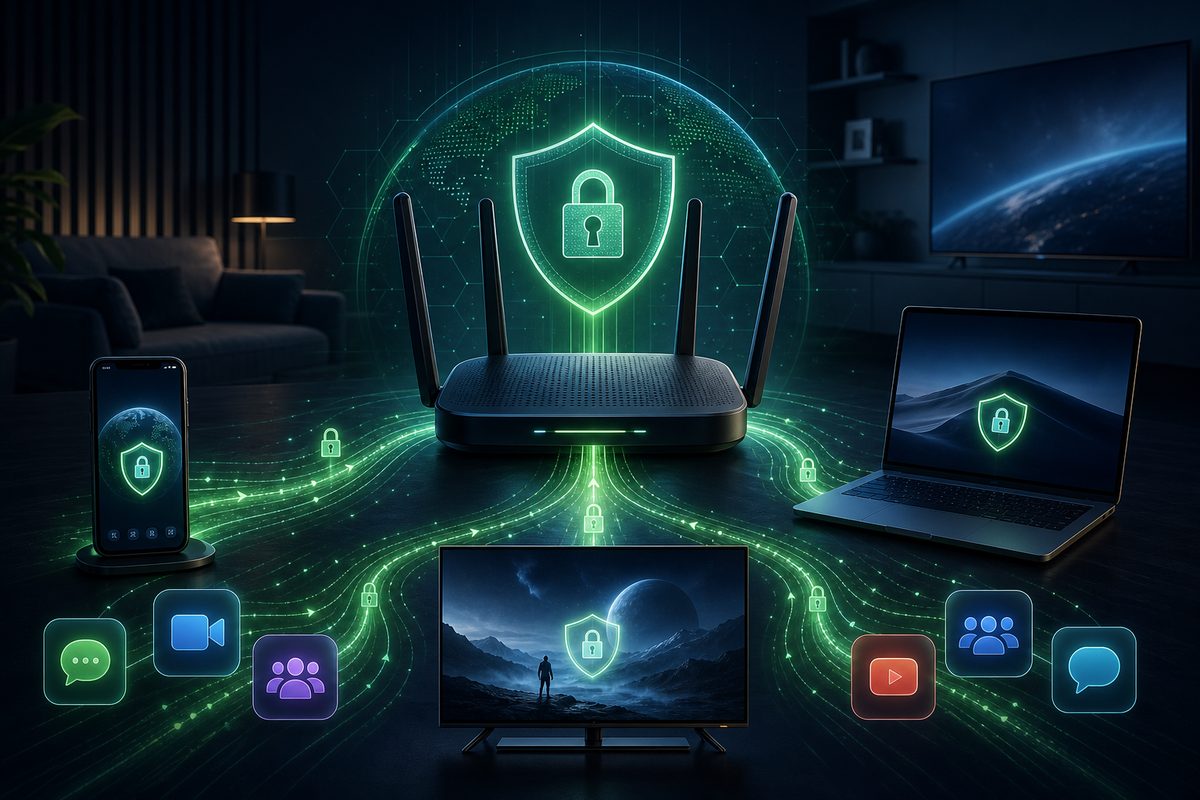
A router-level VPN sounds like the perfect solution: configure it once, and all your home devices reach the internet through a secure tunnel. In practice, in 2026 the nuances matter: Smart TVs, YouTube, Telegram, Discord, printers, and smart home devices can behave very differently if you push all traffic down a single route. Below is a safe and practical setup plan with no workarounds or illegal scenarios — only diagnostics, privacy, stability, and careful routing.
When You Really Need a VPN on Your Router
A home router VPN is useful not because it's a "magic button," but because it fills gaps where a regular app is inconvenient. TVs, set-top boxes, some media players, kids' tablets, game consoles, and IoT devices often lack a proper VPN client. A router lets you set a rule at the network level: which devices go through the tunnel, which stay direct, and which get a separate DNS.
The main trend of recent years is not "turn on VPN for everything" but to manage routes selectively. Home networks have grown more complex: one person watches YouTube on the TV, another is on a Discord call, a third is printing documents over Wi‑Fi, while a phone simultaneously syncs photos and push notifications. If you indiscriminately push all traffic into a remote tunnel, you can end up with latency, strange app errors, and missing local devices.
A router VPN is especially appropriate in three cases:
- you need to protect devices that can't run a VPN app;
- you want a single rule for a Smart TV, set-top box, or a separate Wi‑Fi network;
- you want a stable home setup where you don't have to manually toggle VPN on every gadget.
If your only goal is protecting a phone while traveling, it's easier to use an app on the phone itself. For a home media scenario, a router is often more convenient.
What to Check Before Configuring
Don't start with firmware or buying new hardware — start with an inventory. List the devices that should go through the VPN: TV, Android TV/Google TV, laptop, set-top box, child's tablet, work computer. Separately list devices that more often need direct local access: printer, NAS, cameras, smart home, Chromecast/AirPlay, local gaming devices.
Official Apple and Google documentation reminds us of an important detail: the local network is a separate layer of permissions and device discovery. On iPhone and iPad, apps may request local network access; on Android, VPN is added in system settings, and individual features like always-on/lockdown depend on the version and manufacturer. This doesn't mean a router VPN "breaks" the local network by itself, but it makes routing errors more visible.
Minimum checks before you start:
- Identify your router model and firmware version.
- Check whether there's official support for WireGuard, OpenVPN, or IPsec.
- Measure speed without VPN over cable and over Wi‑Fi.
- Mark devices where low latency matters: games, video calls, Discord.
- Decide whether you need VPN for all devices or only a specific group.
If the router is old and weak, it can become a bottleneck: encryption requires CPU resources. That's why a "no VPN / with VPN / via app on laptop" test often saves hours.
WireGuard, OpenVPN, or a Built-in Client: What to Choose
WireGuard is described in the project documentation as a simple, modern, and fast VPN tunnel with modern cryptography. MikroTik's RouterOS documentation also highlights its suitability for various scenarios, including embedded devices. For a home router this is an important argument: less overhead means a higher chance that speed won't drop too much.
OpenVPN remains a mature option, especially if your router supports it officially and your VPN provider supplies ready .ovpn profiles. The downside: on weak routers it more often hits a CPU bottleneck. IPsec appears in corporate and some home scenarios, but for a regular user it's usually harder to troubleshoot.
| Scenario | What to try first | What to watch for |
|---|---|---|
| Smart TV, set-top box, media player | WireGuard on the router or a separate profile for the TV | Speed, DNS, nearest server |
| Entire home network | WireGuard + exceptions for local devices | Printers, Chromecast, NAS, smart home |
| Old router | OpenVPN only after a speed test, or VPN on the device | Router CPU may not handle it |
| Work laptop | Better a separate corporate VPN on the laptop | Don't mix work and home routes |
| Games and Discord | Don't send everything through a distant server | Ping, jitter, packet loss, voice calls |
A practical rule: if WireGuard is available, test it first. If not, use an official OpenVPN profile, but don't expect gigabit speeds through encryption from an old home router.
A Safe Step-by-Step Setup
Below is a general order that fits most home routers with a VPN client. The names of items in the interface may differ, so refer to your manufacturer's documentation.
1. Update Firmware and Save a Backup
Before making changes, check for updates. For media set-top boxes and Chromecast, Google specifically notes that software updates are important for current features and stability; the logic is the same with routers. Don't install experimental firmware just for the sake of it. If the manufacturer offers a stable version with WireGuard/OpenVPN, use it.
Back up your router settings. This is especially important if you have remote work, cameras, or smart home devices at home: after a failed configuration, you need to quickly return to a working network.
2. Add a VPN Profile, but Don't Enable It for Everyone at Once
Import the WireGuard or OpenVPN configuration. Check the keys, server address, port, DNS, and the allowed IPs/route all traffic parameter. If the interface lets you choose devices or a subnet, first assign the VPN to only one test device — for example, a laptop or TV.
Don't start with "entire network through VPN" mode. It seems simple, but it's exactly what most often leads to complaints: YouTube takes forever to load, Discord stutters, Telegram won't send media, the printer disappears, and the smart home app can't see the lights.
3. Set Up a Separate Wi‑Fi Network or Device List
The ideal home setup isn't a single switch but two routes:
- a regular Wi‑Fi network for phones, work laptops, banking apps, and local devices;
- a VPN Wi‑Fi network or device group for Smart TV, set-top box, media player, and test scenarios.
If the router supports policy-based routing, you can set rules by IP or MAC address. For example, the TV and Android TV go through the VPN, while the printer, NAS, and primary phone go direct. This reduces the risk of accidentally breaking local discovery.
4. Check DNS Separately From the Tunnel
DNS is a frequent reason for the feeling that "VPN isn't working." Sometimes the tunnel is up, but apps keep using the old DNS; sometimes the opposite — DNS goes through the VPN, but local device names stop resolving. If YouTube opens in a browser but the app on the TV freezes, check DNS, the device's date/time, and app updates.
For privacy, it makes sense to use the DNS recommended by the VPN provider, but for home stability it's important not to lose local names. If your network has a NAS or printer accessed by name, check access by IP and by name separately.
5. Keep Access to the Local Network
Many problems start after the VPN client blocks everything except the tunnel. In apps, this is often called Allow LAN, local network access, bypass local network, or something similar. On routers, the idea is the same: local addresses like 192.168.x.x, 10.x.x.x, and 172.16–31.x.x shouldn't accidentally go into the tunnel if you need printers, Chromecast, AirPlay, NAS, and smart home devices.
If you've already encountered this problem, it's useful to compare with a separate breakdown: VPN blocks the local network. For TVs and set-top boxes there are related articles VPN on Android TV and VPN on Fire TV Stick. And for the basic FoliVPN service and features, see the FoliVPN home page.
What to Do If YouTube, Telegram, or Discord Work Worse
Don't change ten settings at once. Diagnostics should be boring and sequential.
YouTube is slow or downgrading quality. First, check the speed on the same device without VPN and through VPN. Then choose the nearest server, restart the app, and check for TV/set-top box updates. The YouTube Help section for playback issues advises starting with basic connection and app diagnostics — this also applies to a VPN scenario.
Telegram won't send media or takes a long time to connect. Che
Use the smallest safe checklist
Open Foli, refresh the subscription and test one network and one route before changing everything.