
VPN Blocking Public Wi‑Fi Login: Airport, Café & Hotel Fixes in 2026
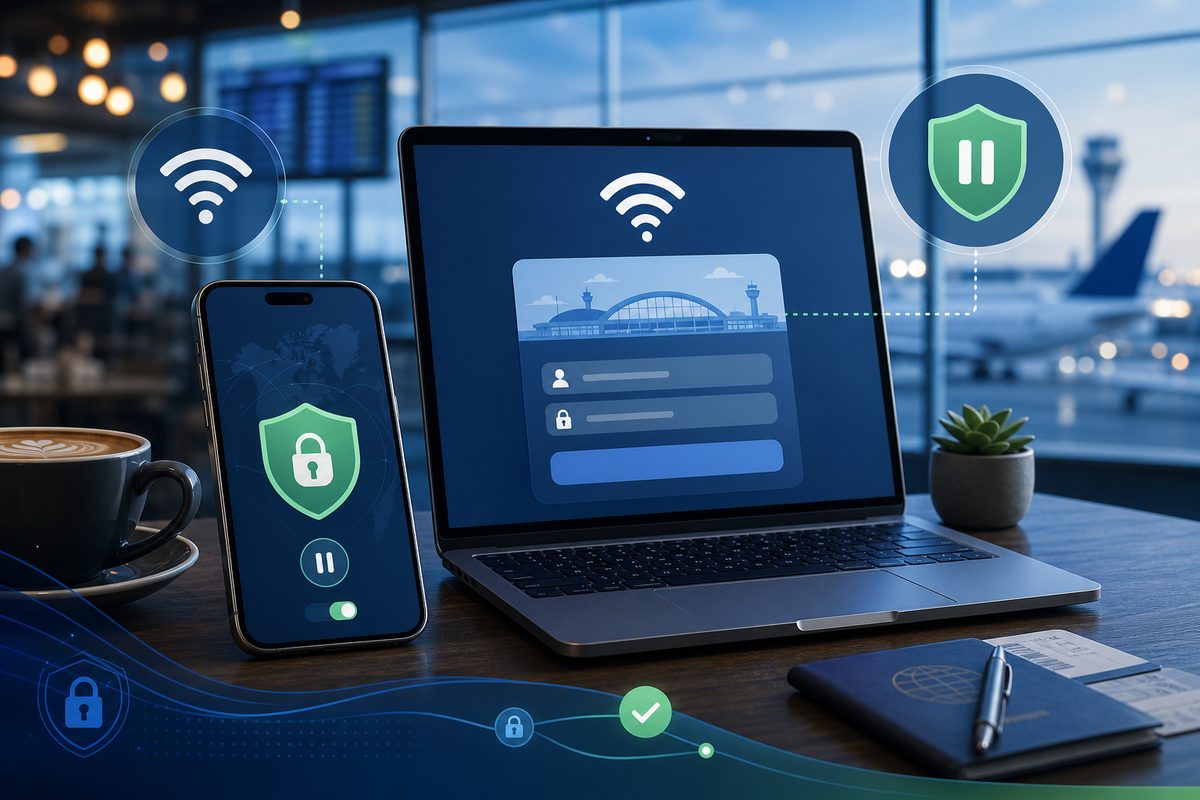
Public Wi‑Fi often breaks not because "the internet is gone" but because the login page — the captive portal — can't open over an active VPN, Private DNS or strict HTTPS settings. In 2026 this is especially noticeable in airports, hotels, coworking spaces and shopping malls: the device shows Wi‑Fi, but sites won't load, messengers stay silent, and the "accept terms" window never appears. Below is a safe sequence of steps — no shady workarounds and no leaving your protection off longer than necessary.
Why a VPN Blocks Public Wi‑Fi Login
Public networks usually grant internet access only after a short authorization step: opening a page, accepting the rules, entering a room number, a receipt code or an email. That page is called a captive portal. Until you authorize, the network may only allow local DNS queries and redirection to its portal, while all other traffic is blocked.
A VPN changes the traffic route: apps try to immediately move into an encrypted tunnel, but the network hasn't yet allowed ordinary access. The result is a trap: Wi‑Fi is connected, but the VPN can't come up; the portal needs to open without a VPN, but the device keeps trying to use the VPN, secure DNS or HTTPS-only mode. In its public Wi‑Fi guide, Zapier specifically notes that a custom DNS often prevents the login page from loading, because such networks use their own DNS to redirect you to the portal. Speedify describes a similar issue for VPNs: most VPNs have to temporarily step aside for the portal, or the splash page won't appear.
Important: this is not "hacking Wi‑Fi" and not a way to bypass network rules. It's about the standard authorization in a legitimate public network where you already have the right to connect.
A 2‑Minute Quick Algorithm
- Connect to the Wi‑Fi network you need.
- Pause the VPN for 30–60 seconds, but don't open banks, email or work dashboards during that time.
- Open a browser and go to a plain HTTP address, for example
http://neverssl.comor the address the network itself suggests in a notification. - If the portal didn't appear — set DNS back to automatic and reconnect Wi‑Fi.
- Accept the network's terms or sign in with a code.
- Make sure a normal site opens.
- Turn the VPN back on right away and only then continue your usual work.
If you use FoliVPN, the logic is the same: first let the public network show its login page, then bring the secure tunnel back. Don't leave the VPN off "for later" — public Wi‑Fi remains a less trusted environment.
Diagnostic Table: Symptom → Cause → Action
| Symptom | Likely cause | Safe action |
|---|---|---|
| Wi‑Fi connected, but "no internet" | Captive portal not yet passed | Open an HTTP page, accept terms, then enable VPN |
| Login window doesn't appear | VPN or Secure DNS intercepts the route | Temporarily disable VPN, set DNS to "Automatic" |
| On iPhone the portal flashed and disappeared | Safari/Private Relay/network profile conflicts with redirect | Forget the network, reconnect, check DNS is "Automatic" |
| On Android an empty "Tap here to connect" page | Private DNS, blocker or browser doesn't let the portal through | Private DNS → Automatic, disable blocker during login |
| VPN won't connect after login | Network throttles UDP, unstable Wi‑Fi or weak signal | Switch server/protocol in the app, try LTE as backup |
| Banks complain after enabling VPN | Service is sensitive to the VPN address | For banks, use mobile data or an app exclusion if available |
iPhone: What to Check If the Login Page Won't Open
On iPhone, a simple sequence without deep settings usually does the trick.
1. Forget the Network and Reconnect
Open Settings → Wi‑Fi → the i icon next to the network → Forget This Network. Then connect again. This resets the previous authorization attempt and forces iOS to recheck whether a captive portal is needed.
2. Set DNS Back to Automatic
In the same network card, open Configure DNS and select Automatic. If a third‑party DNS was set earlier, the public network may not have had a chance to redirect you to the login page. After authorization you can restore your usual settings, but for travel it's easier to keep public networks on automatic DNS.
3. Open a Plain HTTP Page
Open Safari and enter an address without HTTPS. The point is that secure sites don't always let the network correctly redirect you to the terms page. Don't enter passwords on random HTTP pages: you only need to trigger the portal.
4. Turn the VPN On After Authorization
If the VPN profile is set to "always connect," pause it briefly just for the duration of Wi‑Fi login. Once full internet appears, turn it back on. If a hotel or airport network requires re‑authorization every few hours, repeat the same cycle.
Android: Private DNS, Secure DNS and Blockers
On Android the problem often looks like this: Wi‑Fi is connected, a notification suggests you sign in, but the page is empty or the button doesn't respond. In an Android Central discussion a user was advised to check the VPN, blockers, Chrome Secure DNS and system Private DNS; that's the typical set of causes for a captive portal.
1. Private DNS — "Automatic"
Open Settings → Network and Internet → Private DNS and select Automatic. The menu names differ across Samsung, Xiaomi, Pixel and OnePlus, but the logic is the same: while signing in to public Wi‑Fi, don't use a hard‑coded DNS-over-TLS server.
2. Chrome Secure DNS
In Chrome, check Settings → Privacy and security → Use secure DNS. For public network sign‑in it's safer to choose "use your current service provider" or temporarily disable Secure DNS. After login you can restore the settings if you need them.
3. Blockers and Filters
AdGuard, DNS filters, corporate profiles, antivirus VPNs and local firewall apps may block portal domains as ads or trackers. Don't uninstall them — just pause them until login is done. If the portal appears immediately — add the network to exclusions or use a different filtering profile for public Wi‑Fi.
But Is It Safe to Disable the VPN Even for a Minute?
Short answer: it's safer to disable the VPN in a controlled way for a minute, pass the portal and turn it back on than to sit for hours on an open network without knowing what's going on. But follow three rules.
First, while the VPN is off, don't enter passwords and don't open sensitive services. Second, don't install certificates, MDM profiles or "Wi‑Fi accelerators" if a public network suddenly demands them for ordinary access. Third, after login, immediately bring the VPN back and verify that traffic is again going through the secure connection.
If the network doesn't let the VPN through after authorization, use mobile data for sensitive tasks. Public Wi‑Fi can be overloaded or configured so that part of UDP traffic is throttled; that's not always a problem with the VPN service.
Checklist Before Contacting Support
- Confirmed the portal is open and network terms accepted.
- Turned the VPN back on after login.
- DNS on the public network is set to "Automatic".
- On Android, custom Private DNS is off during login.
- On iPhone, the network was forgotten and re‑added.
- Ad blocker / local firewall is temporarily paused.
- Tried a different browser or a private window.
- Tried mobile data: if everything works over LTE, the issue is the public Wi‑Fi itself.
If the VPN still won't connect after the checklist, it helps to include in your ticket: city and network type, device, app, time of the error, a screenshot without personal data and the result of a test over mobile data. A similar template is in the related article "What to Write to VPN Support". If the problem isn't only on public Wi‑Fi and at home sites open partially, see the breakdown of VPN MTU.
Common Mistakes
Mistake 1. Immediately Switching VPN Servers
If the portal isn't passed, switching servers won't help: the network hasn't given you internet yet. Authorize first, then troubleshoot the VPN.
Mistake 2. Opening Your Bank Before Bringing the VPN Back
Don't use open Wi‑Fi for sensitive actions without protection. It's better to spend 20 seconds re‑enabling the VPN or switch to mobile data.
Mistake 3. Turning Off All Security Settings Permanently
You only need to temporarily remove what's blocking the portal: VPN, custom DNS, blocker. After login, restore your protection.
Mistake 4. Agreeing to Install Strange Profiles
A normal guest network usually only needs a terms page or a code. A demand to install a certificate or a device management profile is a red flag, especially in a random café.
FAQ
Why does a VPN interfere
Use the smallest safe checklist
Open Foli, refresh the subscription and test one network and one route before changing everything.