
VPN Kill Switch: What It Is, When to Enable It, and Why It Causes "No Internet" in 2026
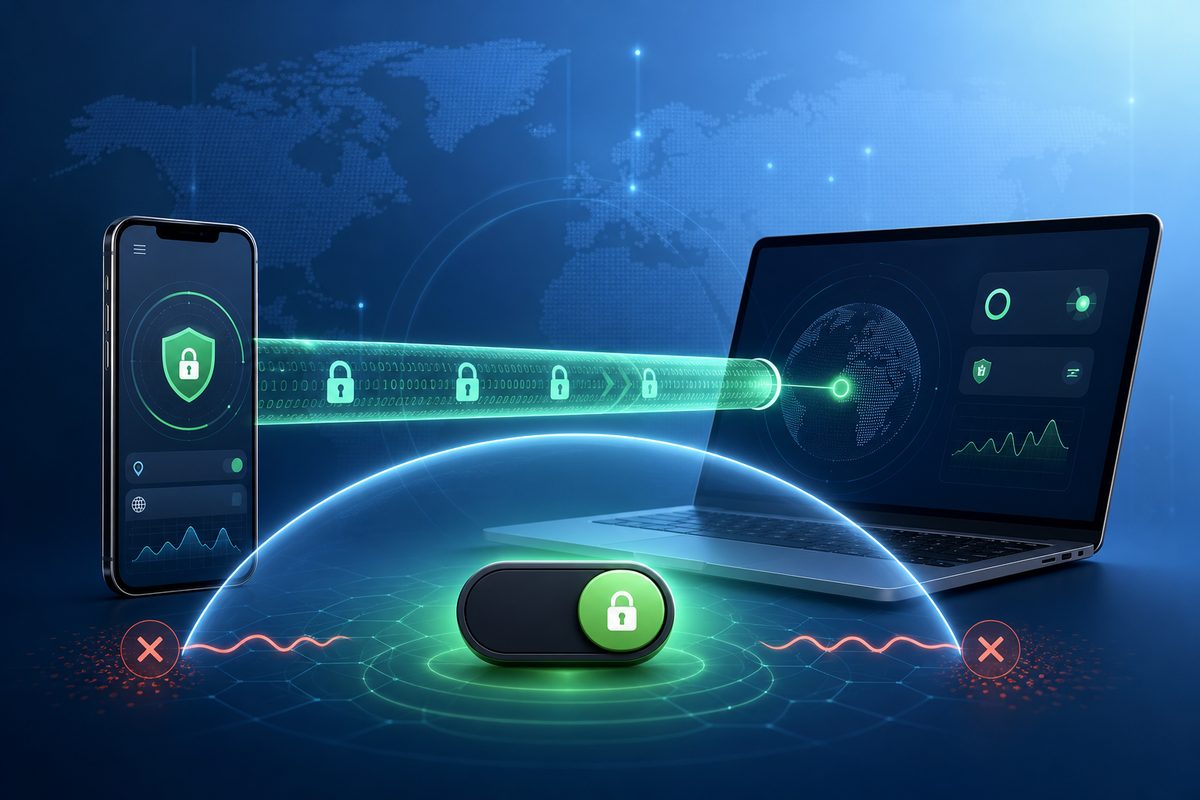
A VPN kill switch is a protective feature that blocks the internet if your VPN tunnel suddenly drops. In 2026 it is increasingly turned on across phones, laptops and routers, yet it is often the very reason behind complaints like "VPN is connected, but Telegram, YouTube or Discord won't open." Below is a practical roadmap: how to decide whether you actually need a kill switch, where to find it on Android, iPhone, Windows, macOS and routers, and how to fix a stuck connection without risky workarounds.
> If you just need a simple VPN for everyday access and privacy, start with the FoliVPN landing page and then tune the protection options to your specific devices.
In short: what a VPN kill switch does
A kill switch works like an emergency cut-off. As long as the VPN connection is stable, your apps reach the internet through the encrypted tunnel. If the tunnel drops while you switch from Wi‑Fi to mobile data, when the server is overloaded, when the protocol gets blocked, or after a laptop wakes from sleep, the kill switch prevents traffic from leaking out through your regular ISP.
Conceptually, it is not a "speed booster" and not a way to bypass restrictions. It is protection against accidentally exposing your real IP address and DNS queries. Proton VPN puts it bluntly in its help docs: a kill switch blocks all internet traffic on the device if the VPN connection is lost, until the tunnel is restored. Google describes a similar system-level logic in its Android docs through "Always-on VPN": Android keeps the VPN active and, on disconnection, shows a notification until you reconnect.
The main trade-off: the stricter the protection, the more likely the user will see "no internet" instead of a leak. That is why a kill switch should be enabled deliberately, not just because a random video told you to.
When you actually need a kill switch
The feature is useful if you:
- frequently switch between public Wi‑Fi, your home network and mobile data;
- work with accounts where a stable login geography matters;
- don't want DNS queries to bypass the VPN when it drops;
- use a VPN on a laptop that often sleeps and wakes;
- set up a VPN on a router for a TV, set-top box or several home devices;
- check for leaks after IPv6 or DNS issues.
If, however, you only need a VPN occasionally — for example, to open a specific site and then return to your normal network — a strict kill switch may get in your way. In that scenario it is better to keep it off or enable it only during sensitive tasks.
Why YouTube, Telegram or Discord stop working after you enable the kill switch
Most of the time, the service itself is not to blame — it is the state of the tunnel. The kill switch sees that traffic is not going through the VPN and honestly blocks the network. The user then sees the symptoms: YouTube spins on loading forever, Telegram says "Connecting…", Discord won't open a call, and the browser shows a network error.
There are five typical causes.
1. The VPN tunnel hasn't recovered after a network change
Your phone moved from Wi‑Fi to LTE, your laptop woke from sleep, the router got a new IP from the ISP — the VPN may not reconnect instantly. If the kill switch is strict, the internet stays blocked until the tunnel is restored.
2. "Block connections without VPN" is on in Android
On Android, the kill switch is often implemented not only inside the VPN app but also as a system setting: Always-on VPN plus blocking connections without VPN. Proton VPN's Android guide explicitly recommends turning both toggles on for strict mode. This increases protection, but if the selected VPN app fails to start, the network will look completely "broken."
3. A conflict with Private DNS or Secure DNS
If DNS is handled separately — for example, via Android Private DNS or secure DNS in the browser — some queries can go in a way the VPN app doesn't expect. We have already covered similar symptoms in the DNS_PROBE_FINISHED_NXDOMAIN VPN article: check the DNS layer first, and only then replace the entire app.
4. Split tunneling has excluded the app you need
Split tunneling is convenient when some apps need to bypass the VPN. But combined with a kill switch it can produce an unexpected result: an app is excluded from the tunnel, while strict mode forbids connections outside the VPN. As a result, that very excluded app stops working.
5. IPv6 or the router sends part of the traffic outside the tunnel
On routers and in some home networks, IPv6 can live a life of its own. If the VPN covers only IPv4, a site or app may try to use IPv6 outside the tunnel. This risk is covered in detail in our companion piece VPN IPv6 leak.
Where to enable and verify the kill switch on different devices
| Device | Where to look | What to check first | When to disable temporarily |
|---|---|---|---|
| Android | Settings → Network & internet → VPN → selected VPN | "Always-on VPN" and block without VPN | If the VPN app doesn't launch after reboot |
| iPhone / iPad | Inside the VPN app and the VPN profile | Auto-connect, VPN On Demand, app permissions | If the network only works after deleting the profile |
| Windows | VPN app settings | Kill switch, VPN network adapter, DNS | If there is no internet after sleep without reconnecting |
| macOS | VPN app settings or profile | Network Extension permissions, autostart | If the local network or AirDrop gets blocked |
| Router | Router panel / OpenWrt / GL.iNet / ASUS | Global VPN policy, block non‑VPN traffic | If a TV or console can't get online |
In its VPN deployment documentation, Apple emphasizes that Apple devices support IKEv2, L2TP over IPsec, Cisco IPsec, split tunneling, VPN On Demand and per-app VPN. This matters: on iPhone and iPad, behavior often depends not on a single "kill switch" toggle but on the profile, auto-connect rules and the capabilities of the specific VPN app.
A practical 7-minute diagnostic checklist
Use this order so you don't break settings chaotically.
- Check the VPN status. Don't trust the icon alone: open the app and make sure it says "Connected," not "Reconnecting."
- Switch the server, not the protocol right away. Sometimes it's enough to pick a neighboring location or a less loaded server.
- Turn the kill switch off for 30 seconds. If the internet comes back immediately, the cause is almost certainly the non‑VPN traffic block.
- Turn it back on and reconnect the VPN. A kill switch should protect you, not stay off forever.
- On Android, check Always-on VPN. If "block without VPN" is enabled, make sure the right app is selected.
- Check Private DNS / Secure DNS. Temporarily switch back to automatic DNS and test YouTube, Telegram, Discord.
- Disable split tunneling for the problem app. Let it go fully through the VPN, then test again.
- Reboot the device or router. This clears stuck network states without removing the profile.
- Check IPv6. If after enabling the VPN a site still sees your ISP's IPv6, set up leak protection or disable IPv6 wherever your device allows it.
Safe setup on Android
On Android the path can differ slightly between Samsung, Xiaomi, Pixel and others, but the basic logic is the same: open "Settings," find "VPN," choose the right app and check "Always-on VPN." Google's official docs state that once the VPN is connected a VPN icon appears, and if an always-on VPN drops, Android shows a notification that stays visible until you reconnect or disable the feature.
For strict mode, two options are enabled: Always-on VPN and blocking connections without VPN. Before that, however, check three things: the VPN app must launch after reboot, the battery settings must not block its background processes, and Private DNS must not conflict with the DNS used inside the VPN.
If after enabling strict mode you see "no internet at all," don't remove the VPN right away. First disable "block without VPN," reconnect, and then turn it back on. That is safer than resetting all your network settings.
What to keep in mind on iPhone and iPad
On iOS the user sees fewer system toggles than on Android. Part of the logic lives inside the VPN app, part in the VPN profile, and part in auto-connect rules. Apple describes VPN On Demand as a mechanism that automatically establishes a connection under specific network conditions; for corporate scenarios, there is also per-app VPN, where the tunnel carries traffic from specific managed apps only.
In practice, this means: if your iPhone is "holding" an old profile while a new app tries to create a different tunnel, conflicts are possible. Review the list of VPN profiles, delete obsolete ones, keep a single working profile, and only then enable strict protection inside the app.
Router kill switch: convenient, but dangerous to enable blindly
Use the smallest safe checklist
Open Foli, refresh the subscription and test one network and one route before changing everything.