
VPN MTU: Why Sites Half-Load and How to Fix It in 2026
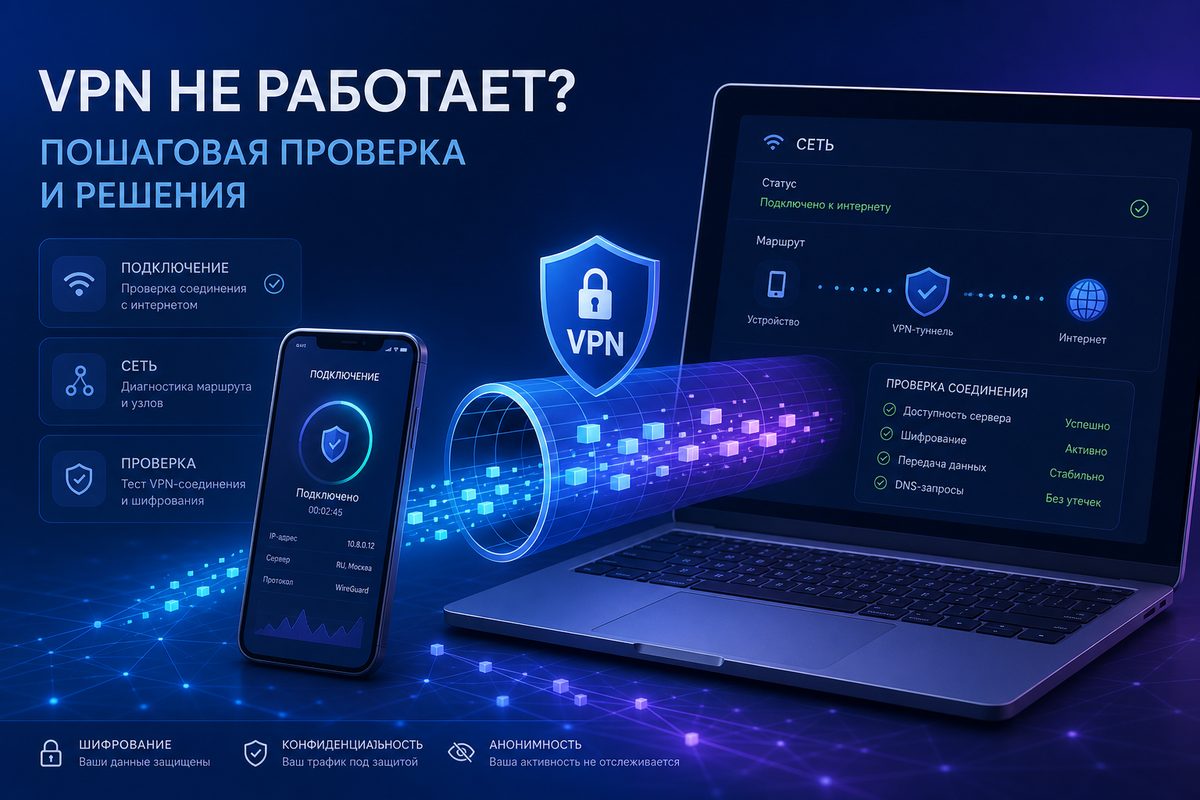
If your VPN connects but websites freeze, images load only half the time, Telegram is stuck on "updating," and YouTube or Discord behave erratically, the cause isn't always a block or a bad server. Sometimes it's a boring but critical parameter — VPN MTU: the packet size your network can pass through without fragmentation. This article is a practical, safe walkthrough: how to recognize an MTU problem, what to check on Android, iPhone, PC and router, and when it's better not to touch the settings manually.
> This article covers diagnostics of legitimate network errors and connection stability. It does not contain instructions on bypassing laws, attacking networks, or hiding illegal activity.
Topic and context: why MTU matters again
In 2026, user complaints about VPNs increasingly sound less like "it won't connect" and more like "it connects, but nothing really works." That's an important distinction. Small data exchanges may still go through: the app shows a green status, the IP changes, ping sometimes responds. But the moment a site serves a large page, a video, a media file or a voice stream, the connection starts falling apart.
Recent sources on network diagnostics agree on one thing: VPN tunnels add overhead headers to packets. Cloudflare's documentation on MTU/MSS explains that encapsulation reduces the space available for the original data: for example, GRE over IPv4 adds 24 bytes of overhead, meaning the effective MTU drops below the standard 1500 bytes. OneUptime, in its Cloud VPN breakdown, also calls fragmentation "the silent performance killer": the tunnel may be up, but apps will lag or drop. VyprVPN support specifically describes a user-visible symptom on Android: VPN connected, but sites and apps don't load; among the listed causes is an MTU that doesn't match the network.
For an ordinary user the conclusion is simple: if the problem appears only on certain sites, only on certain Wi-Fi/LTE networks, or only after connecting the VPN, it's worth checking not only the server and DNS, but also MTU/MSS.
What MTU and MSS are, without the engineering jargon
MTU is the maximum size of a network packet that can be sent along a path without fragmentation. On typical Ethernet/Wi-Fi networks you'll often see 1500 bytes, but this isn't a law of nature: mobile networks, PPPoE, corporate Wi-Fi, IPsec, WireGuard, OpenVPN or cloud tunnels can all reduce the actual size.
MSS is a similar parameter, but for the TCP payload. Cloudflare gives the basic formula for IPv4: if MTU is 1500, then MSS is usually 1460, because 20 bytes go to the IPv4 header and 20 bytes to the TCP header. When a VPN adds its own headers, previously "large" TCP segments may no longer fit.
Imagine a box and a courier package. A website hands out data in boxes of 1500 arbitrary units. The VPN wraps every box in additional protective packaging. The outer dimensions grow, but the warehouse door stays the same. If the box doesn't fit, it must be split, shrunk, or returned to sender with a request to send something smaller. If that request gets lost, the user sees a frozen site.
Typical symptoms: when to suspect VPN MTU
MTU rarely shows up as a single clear error. More often it's a set of oddities:
| Symptom | Why it looks like MTU | What to check first |
|---|---|---|
| VPN is connected, but sites only load partially | Small requests go through, large responses are lost | Change network, server, protocol |
| Messenger shows "updating" or media loads slowly | Text packets are small, media and previews are larger | Test without Private DNS and on another Wi-Fi/LTE |
| YouTube starts but quality drops or buffers endlessly | Video is sensitive to loss and retransmissions | Compare UDP/TCP protocols in the app |
| Discord/calls are unstable | UDP traffic and fragments can be lost | Try another server and VPN mode |
| Works fine on one ISP, breaks on another | Path MTU depends on the route | Don't generalize results between networks |
| Worse through a router than directly on a phone | The router adds another NAT/tunnel layer | Check MTU/MSS on the router or disable VPN on it |
Important disclaimer: these symptoms don't prove MTU 100%. The same signs can come from an overloaded server, DNS conflict, UDP blocking, IPv6 leak, an outdated app, or a broken profile. That's why the order of checks below goes from simple to complex.
Safe 10-minute diagnostics
1. Compare two networks
Connect the VPN on your home Wi-Fi, then on mobile data. If the problem repeats everywhere, the likely culprits are the profile, server, app or the service itself. If everything works on one network and sites freeze on another, that's a strong hint toward routing, MTU, UDP filtering or DNS.
2. Switch the server, but don't change everything at once
Pick a nearby location or another server from the same service. Don't simultaneously change app, protocol, DNS and router — you won't know what helped. One test — one change.
3. Toggle the protocol in the app
Many VPN clients let you choose between several modes. OpenVPN sources often note: UDP is preferred for speed, but with MTU/fragmentation issues, TCP sometimes behaves more stably, even though TCP-over-TCP isn't technically ideal. For the user, this isn't a command to "always use TCP" but a diagnostic test: if TCP suddenly fixes the sites, the cause may lie in UDP, fragmentation or ICMP blocking.
4. Disable extra network features during testing
On Android, temporarily test without Private DNS, battery saver for the VPN app, and aggressive "boosters." On iPhone, test without extra profiles, content filters and Private Relay, if it's on and applicable to your scenario. Restore your preferred settings after the test.
5. Test the router scenario separately
If the VPN is enabled on the router, compare three modes:
- device without VPN;
- VPN in an app on the device;
- VPN on the router.
If only the third option breaks, don't rush to blame the phone. The router may lack performance, suffer from double encapsulation, an incorrect MSS clamp, or an IPv6 conflict. For related reading, see VPN on a router: where to start and a more advanced piece VPN on an OpenWrt router: PBR and sing-box.
What you can tune, and what's better left alone
If you're using a ready-made service like FoliVPN, first check the in-app settings and support recommendations. Manual MTU editing isn't appropriate everywhere: on iPhone, access to such parameters is limited; on Android it depends on the client; and on a router, a mistake can knock out the internet for the whole household.
For Android
A safe order looks like this:
- Update the VPN app and profile.
- Reconnect to another server.
- Disable Private DNS during testing.
- If the client supports "Optimize MTU" or a similar option — use it.
- If there's a manual MTU field, save the original value and try lowering it in small steps.
Don't copy other people's values from forums without context. For one user WireGuard 1420 will be the norm; for another, stability appears at 1380; for a third the cause turns out to be DNS entirely.
For iPhone and iPad
Usually it's better not to hunt for a "secret MTU field" — there may not be one. Practical actions: update the app, remove and re-add the VPN profile, switch server/protocol, try a different network, temporarily disable conflicting network profiles. If the problem appeared after an iOS or app update, the fix more often comes via a client or profile update than a manual network tweak.
For Windows, macOS and Linux
On computers, diagnostics are broader — but so is the risk. Advanced users can probe Path MTU via ping with the "Do Not Fragment" flag, but the commands and syntax differ across operating systems. For a consumer-level article the principle matters more: if a large packet with the no-fragmentation flag doesn't pass, but a smaller one does, the path requires a smaller MTU. Only change the system MTU if you understand how to restore the original value.
For routers
On routers it's often not "magic" MTU numbers that help, but correct MSS clamping for TCP. OneUptime gives the TCP rule: MSS is approximately tunnel MTU minus 40 bytes for IPv4/TCP headers. But that's already admin territory. If the router serves the whole family or office, back up the configuration first.
Practical checklist before contacting support
Put together a short report — your issue will be resolved faster:
- device and OS: Android/iOS/Windows/macOS, version;
- network: Wi-Fi, LTE/5G, home ISP or public network;
- what exactly breaks: sites, apps, video, calls, file downloads;
- whether it works without VPN;
- whether it works on another server;
- whether it works on another protocol;
- whether Private DNS, IPv6, filters, antivirus VPN, or router VPN are enabled;
- whether there's a difference between the app and
Use the smallest safe checklist
Open Foli, refresh the subscription and test one network and one route before changing everything.