
VPN Not Changing Location: Why Sites Still See Your Real Region in 2026
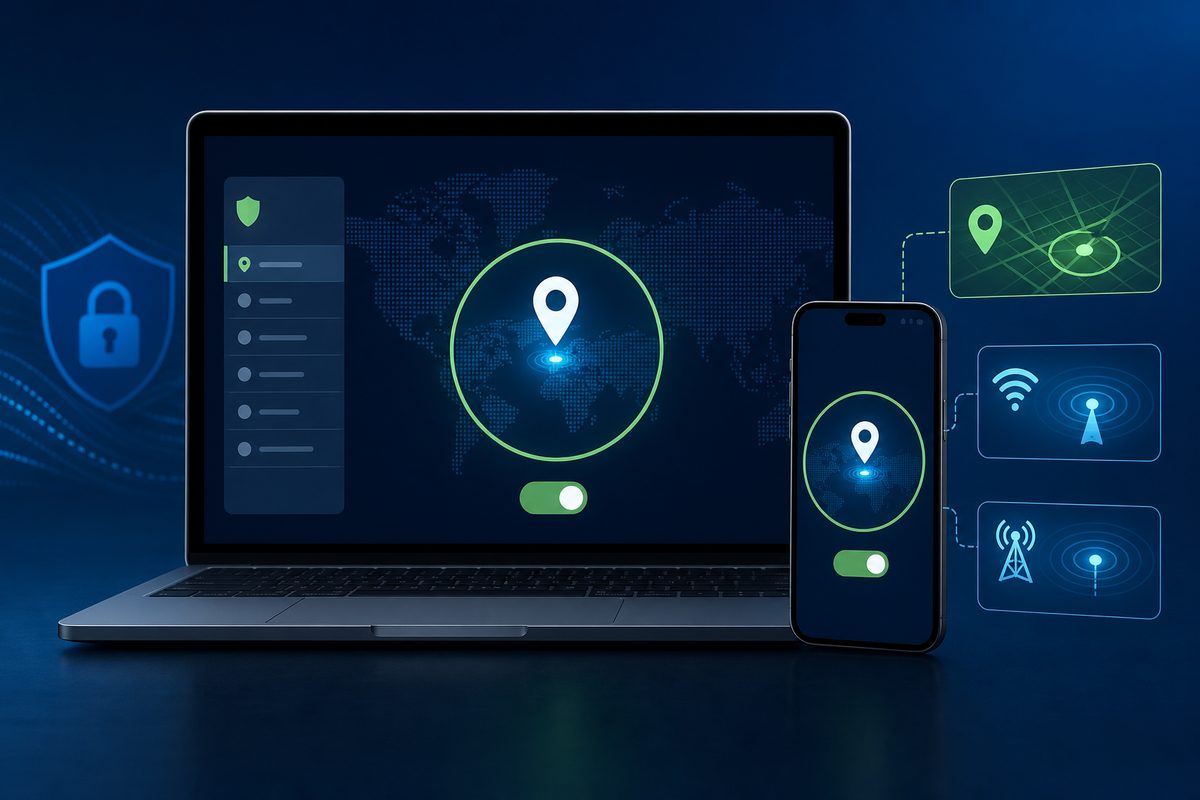
A VPN changes your IP address, but it is not obliged to change every kind of "location" that websites and apps can see. That is why in 2026 a common scenario looks like this: the VPN is connected, an IP check shows a server in another country, yet Google, YouTube, a marketplace, a map, or an app still treats you as being in your old city. Below is a safe checklist without myths: how to tell normal behavior from a leak, and what you can actually fix on iPhone, Android, and in the browser.
If you need a reliable VPN for everyday access and traffic protection on public networks, start with the FoliVPN landing page. And if your problem looks less like geolocation and more like DNS or a leak, you may also find these helpful: Private DNS interfering with VPN and IPv6 leaks through VPN.
Short answer: a VPN changes your IP, not your GPS
The main confusion is in the word "location." Different services mean different things by it:
- IP location — the approximate region based on the address a site sees you connecting from. This is what a VPN actually changes.
- GPS location — the device's coordinates. A VPN does not spoof this.
- Browser location — the result of the Geolocation API, which can combine GPS, nearby Wi‑Fi networks, cell towers, and IP.
- Account location — language, account region, sign-in history, payment profile, cookies, and search preferences.
- App location — a mix of IP, location permissions, device locale, SIM card, and the service's own rules.
So the phrase "the VPN isn't changing my location" doesn't always mean the VPN is broken. Often the VPN is working correctly: it encrypts traffic and shows sites the server's IP, but the site is pulling region info from somewhere else.
What recent sources say
IVPN's help center explains that modern browsers use the Geolocation API: a site can request the device's physical location, and the browser can take into account GPS, Wi‑Fi networks, cell towers, and IP. It also notes separately that with a VPN connected, an IP check should show the VPN server's location, but alternative sources can still reveal your actual whereabouts.
A Security.org article, updated in March 2026, highlights an important distinction for iPhones: a VPN changes your IP address, but not your GPS; that's why Find My, Apple Maps, Waze, and similar apps won't rely on the VPN alone. ExpressVPN's article on Android also points out that a VPN changes IP location but not GPS data, while Android additionally uses Wi‑Fi/Bluetooth scanning, mobile networks, Google Location Services, and sensors.
Google is a story of its own. ExpressVPN's help article, updated April 29, 2026, states that Google Search and YouTube sometimes show a country different from the chosen VPN server because of IP databases or location detection methods beyond IP. Importantly: such a country mismatch does not by itself prove that the VPN has stopped working.
Quick 5-minute diagnostics
Before tweaking settings, split the problem into three layers.
| What to check | Where it shows | What it means | What to do |
|---|---|---|---|
| IP has changed | any IP-check site | the VPN tunnel is likely active | move on to browser, cookies, GPS |
| IP has not changed | IP-check shows your city/ISP | VPN didn't connect or traffic is bypassing it | reconnect VPN, switch server, check kill switch |
| Google shows the wrong region | bottom of Google page, YouTube, ads | could be account region/cookies/IP database | change search region, clear cookies, try another browser |
| Maps see your real place | Maps, weather, taxi apps | the app is using GPS/location services | revoke location permission or use approximate location |
| One site sees your real city | a specific site | saved cookies, account, shipping address | sign out, clear site data |
| Browser asks to "allow location" | popup prompt | the site wants device geodata, not just IP | don't grant it, reset permissions |
Minimal test: connect the VPN, open a private window, visit an IP-check site, then the problem service. If everything is fine in the private window, the cause is often cookies, account state, or saved permissions — not the VPN.
Why sites still see your old city
1. Browser location permission
If you once clicked "Allow location," the site can get more than just your IP. The browser and OS may use nearby Wi‑Fi networks, Bluetooth beacons, GPS, and mobile network data. Even on a laptop without GPS, accuracy can be surprisingly high: Wi‑Fi access points have long been mapped into geolocation databases.
What to do:
- In Chrome, open site settings → "Location" and remove the permission for the problem domain.
- In Safari on macOS/iOS, check "Privacy & Security" → "Location Services."
- In Firefox, you can review site permissions via the icon to the left of the address bar; an advanced option is disabling
geo.enabled, but it's better not to change system parameters without a good reason. - After the change, close the tab and reopen the site.
2. Phone GPS beats the VPN
On iPhone and Android, many apps ask for actual coordinates. A VPN does not spoof GPS, so maps, delivery, weather, taxi, fitness, and games can still see your real place. This is a normal security model: the VPN handles the network route, not the device's sensors.
Safe options:
- disable precise location for the app;
- allow only approximate location, if the system supports it;
- block location "in the background";
- check whether location history is enabled in your account;
- avoid shady GPS-spoofing apps: they may violate service rules, collect data, and break banking or security apps.
3. Cookies, account, and search history
Google, YouTube, marketplaces, and streaming services look at more than your IP. They remember language, account region, shipping address, payment method, past sign-ins, cookies, and result preferences. So after switching VPN servers, the site may still show the old region.
Things to do without going to extremes:
- open the site in another browser or in a private window;
- sign out of the account and check while logged out;
- delete cookies only for that specific site, not for the entire browser;
- in Google Search, manually check language and region settings;
- don't change the region of payment accounts without understanding the consequences: it can affect subscriptions, balance, and content availability.
4. IP databases don't update instantly
Even if a VPN server is physically in one country, individual sites may treat its address as a different country. The reason is differing IP geolocation databases. One service has updated, another hasn't. ExpressVPN's help article explicitly lists this as one of the reasons Google may show a country different from the VPN server's.
The practical fix is simple: check your IP on several independent services. If one shows France, another the Netherlands, and a third Germany, this is not necessarily a leak. It can simply be database disagreement. For everyday use, switching servers or picking a neighboring location often helps.
5. DNS, IPv6, and WebRTC
Sometimes the problem really is closer to a leak. DNS queries may go the wrong way, IPv6 may bypass the tunnel, and WebRTC in the browser can expose network addresses in certain setups. We already covered a separate checklist for IPv6 VPN leaks. If a site shows not just "the wrong region" but your actual ISP or home IP, this is the layer to inspect.
Checklist: what to do if your VPN isn't changing your location
- Check your IP after connecting. If the IP hasn't changed, the issue is with the VPN connection itself, not with geolocation.
- Switch VPN servers. Sometimes a specific IP is incorrectly labeled in geo databases.
- Open the site in a private window. A quick way to separate cookies and account state from a network problem.
- Reset the "Location" permission. Especially for Google, maps, weather, marketplaces, and delivery sites.
- Check system location services. On your phone, deny precise location wherever it isn't needed.
- Clear data for that specific site. You don't have to wipe the whole browser — start with the problem domain.
- Check DNS/IPv6/WebRTC. If your real ISP or home address shows up, that already looks like a leak.
- Don't mix goals. A VPN is for IP and traffic; App Store/Google Play region, GPS, and shipping address are managed separately.
iPhone: what to check separately
On iPhone, start with Settings → Privacy & Security → Location Services. For the problem app, choose "Never" or a less precise mode, if available. Then check Safari/Chrome: make sure there's no saved location permission for the site.
If the issue is with the App Store, the VPN alone won't fully solve it: the Apple ID region is a separate setting with its own restrictions on payments, subscriptions, and balance. If the issue is with Maps or Find My, that's a GPS scenario,
Use the smallest safe checklist
Open Foli, refresh the subscription and test one network and one route before changing everything.