
VPN Not Working on Mobile Data: What to Check on LTE and 5G in 2026
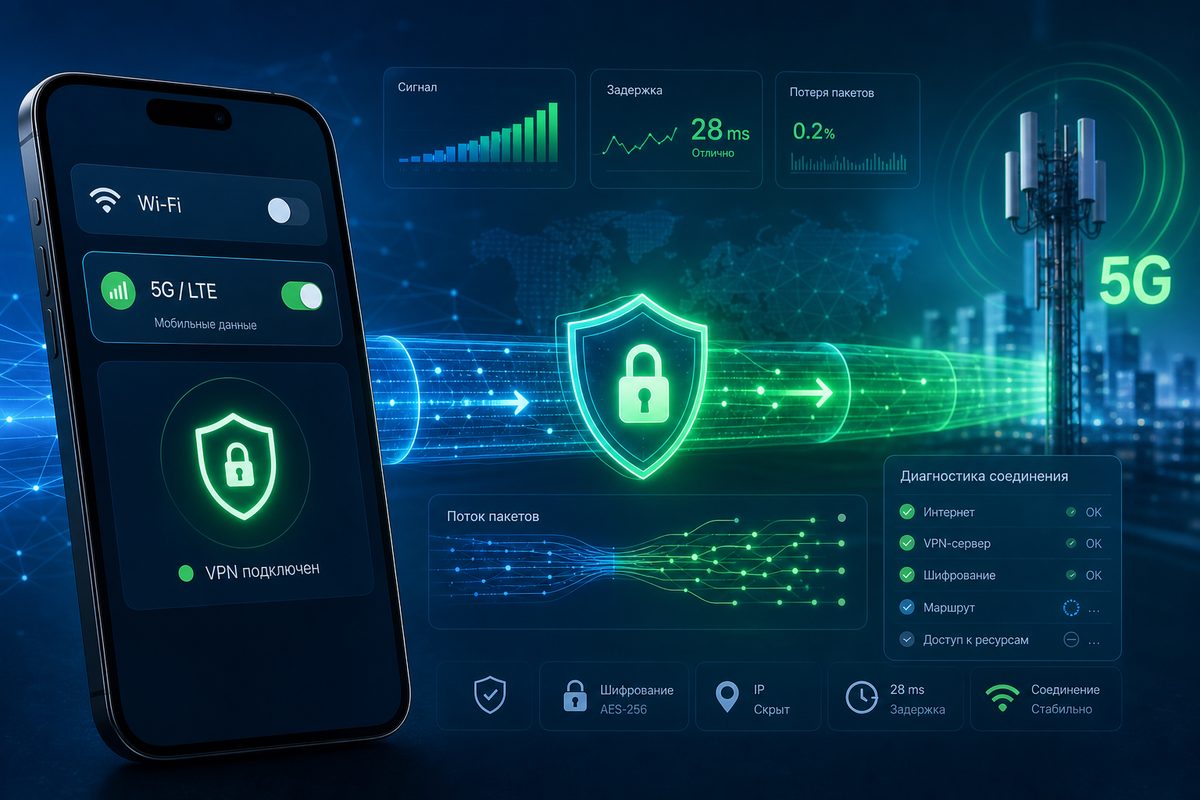
If your VPN runs fine at home over Wi-Fi but fails to connect on LTE or 5G outdoors, hangs on "connecting," or leaves your phone without internet, the problem isn't necessarily the VPN service. A mobile network plays by different rules: APN, IPv6, NAT, UDP, DNS, and power-saving modes can behave differently than your home router. Below is a safe checklist for iPhone and Android that helps you separate an app glitch from quirks of your mobile carrier.
This guide is built for an informational intent: understand the cause, restore a legitimate and secure connection, without breaking your phone or relying on shady workarounds. For a basic connection and choosing a server, use Foli VPN, and treat this article as your diagnostic map.
Why a Mobile Network Breaks VPN Differently Than Wi-Fi
On Wi-Fi, your phone usually gets a private IPv4 address from the router, a familiar DNS, and a relatively predictable route to the server. On LTE and 5G it's all different: the carrier may use CGNAT, hand out IPv6, change the route as you move between cells, throttle certain types of traffic, or handle UDP in its own way. That's why the scenario "VPN works on Wi-Fi but not on mobile data" must be tested separately rather than extrapolated from your home network.
Google's Android help describes the standard way to connect to a VPN via device settings, including the always-on VPN mode. Android's developer documentation separately stresses that a VPN on the platform runs as a service that routes app traffic through a virtual network interface. Apple uses similar logic: VPN profiles and configurations are managed by the system, while mobile data, SIM/eSIM, and device profiles can affect network availability. WireGuard's own materials show that the tunnel depends on routes, peer settings, and how packets traverse NAT and firewalls. The practical takeaway: with a mobile issue, it's not just login and password that matter, but the entire path from your phone to the VPN server.
Quick Table of Causes and Checks
| Symptom | Most Likely Thing to Check | Safe Action |
|---|---|---|
| VPN hangs on connecting only on LTE/5G | UDP, server, weak signal, carrier NAT | Switch server, try a TCP profile, retest in another location |
| VPN connects but no sites load | DNS, MTU, Private DNS, kill switch | Temporarily disable Private DNS, change DNS in the app, test without kill switch |
| Messenger works but websites don't open | DNS or IPv6 routes | Compare IPv4/IPv6, switch protocol, update profile |
| On iPhone, VPN drops on mobile data | profile, permissions, Low Data Mode, eSIM/SIM | Check profile, mobile data, app update |
| On Android, internet disappears after Always-on VPN | Always-on, Block connections without VPN, Private DNS | Review always-on VPN mode and app exceptions |
| 5G is worse than LTE | unstable radio channel or 5G routing | Temporarily select LTE/4G and compare results |
Step 1. Set Up a Baseline Test
Start with a short baseline scenario, otherwise it's easy to confuse several causes. Pick one website, one messenger, and one VPN server. Test them over Wi-Fi, then disable Wi-Fi and repeat on mobile data. Don't change everything at once: server, protocol, DNS, and phone settings. Change one parameter at a time and write down the result.
A minimal baseline test:
- Wi-Fi off, mobile data on.
- Stable signal strength, not just one bar indoors.
- VPN app is allowed to use mobile data.
- The same Foli VPN server is being tested.
- First open a simple website, then an app with voice or video.
- After each change, the VPN is fully reconnected.
If even an ordinary website won't open on mobile data without a VPN, fix the carrier, balance, SIM/eSIM, or coverage issue first. The VPN shouldn't be the first suspect when your underlying internet is already unstable.
Step 2. Check Mobile Data Permissions for the VPN App
On iPhone, open Cellular settings and make sure the VPN app isn't disabled for mobile data. Apple's iPhone guide describes separate settings for mobile data, SIM/eSIM, and traffic usage modes. If an app is allowed to work only over Wi-Fi, it will look "broken" precisely when you're out and about.
On Android the path depends on the skin, but the logic is the same: app settings, mobile data, background traffic, and data saver. Additionally, check whether an aggressive power-saving mode is active that stops the VPN in the background. This is especially noticeable when the screen turns off: the tunnel looks connected, but app traffic stops flowing.
For Android, the Always-on VPN mode also matters. It's useful for privacy, but with a misconfigured profile it can block the entire internet. If the "Block connections without VPN" option is on, the phone will honestly cut off the network until the tunnel comes back. For diagnostics you can temporarily turn off the block, test the connection, and then restore protection.
Step 3. Compare UDP and TCP, But Don't Treat TCP as a Permanent "Magic Button"
Many mobile problems look like an endless connection attempt: the password is correct, the server is alive, but the tunnel won't come up. A common cause is how UDP traverses the carrier network. UDP usually offers better speed and latency, but on certain routes it can be dropped or filtered. TCP often works more reliably in tricky networks, although it can be slower.
The right tactic: don't argue which protocol is "better," but compare them on the same server. If UDP won't connect and TCP does, that's a strong sign the issue isn't your account or app but the traffic path through the mobile network. After that you can try another server, another region, or a profile with more suitable parameters.
Important: don't use this step to bypass service rules or restrictions you're required to comply with. This article is about restoring normal, secure access to your own internet connection and diagnosing technical errors.
Step 4. Sort Out APN, IPv6, and DNS Without Risky Experiments
APN is the carrier's access point. In most cases you don't need to change it manually: the phone receives the correct settings from the SIM/eSIM. But after porting a number, traveling, swapping an eSIM, or carrying over an old corporate profile, the APN may turn out to be non-standard. Telltale sign: mobile internet partly works, while VPN, voice calls, or specific apps behave oddly.
The safe order is: first reboot the phone, then check for a carrier settings update, then compare with another SIM/eSIM if you have one. Don't enter random APNs from forums: you can degrade connectivity, MMS, VoLTE, or billing. If the carrier publishes official parameters, use only those.
IPv6 also deserves attention. Many mobile networks rely on IPv6 more heavily than home routers do. If your VPN profile only covers IPv4 or the app builds routes incorrectly, some requests may travel outside the expected path or never arrive at all. That's no reason to panic, but it is a reason to update the profile, switch protocol, and pick a server that handles IPv4/IPv6 correctly.
DNS is the third common pain point. On Android, Private DNS can clash with the VPN app or produce the "VPN is connected but sites don't open" symptom. If you recently enabled Private DNS, a DoH app, or an ad filter, turn them off temporarily and retest. If that helps, configure DNS inside the VPN app or pick a single filtering system instead of stacking several at once.
Step 5. Check MTU If Everything Connects But Pages Hang
MTU is the size of a packet the network can pass without fragmentation. On mobile networks, especially with IPv6, NAT, and a tunnel over a tunnel, an MTU that's too large can cause strange symptoms: the VPN is connected, the messenger sometimes works, but websites load every other time, video won't start, and downloads cut off.
A regular user doesn't need to calculate MTU manually. It's enough to know when to suspect this layer: the connection is formally up, but large pages and media stall. Practical actions: switch server, protocol, or profile, update the app, temporarily disable extra DNS/content filters. If the service offers ready-made profiles with different parameters, compare them rather than editing configs blindly.
Step 6. Check iPhone Separately
On iPhone, start with the basics: mobile data is on, the app has access to the cellular network, Low Data Mode isn't getting in the way, and the VPN profile is installed from a trusted source. Apple separately documents installing and removing configuration profiles; if the profile is old, duplicated, or installed from an unclear place, it's better to remove it and install it again from the official app or service dashboard.
If you use eSIM and a physical SIM at the same time, check which line is responsible for mobile data. Sometimes a VPN is being tested
Use the smallest safe checklist
Open Foli, refresh the subscription and test one network and one route before changing everything.