
VPN on a Phone with eSIM: How to Set Up Two SIMs and Keep Your Internet in 2026
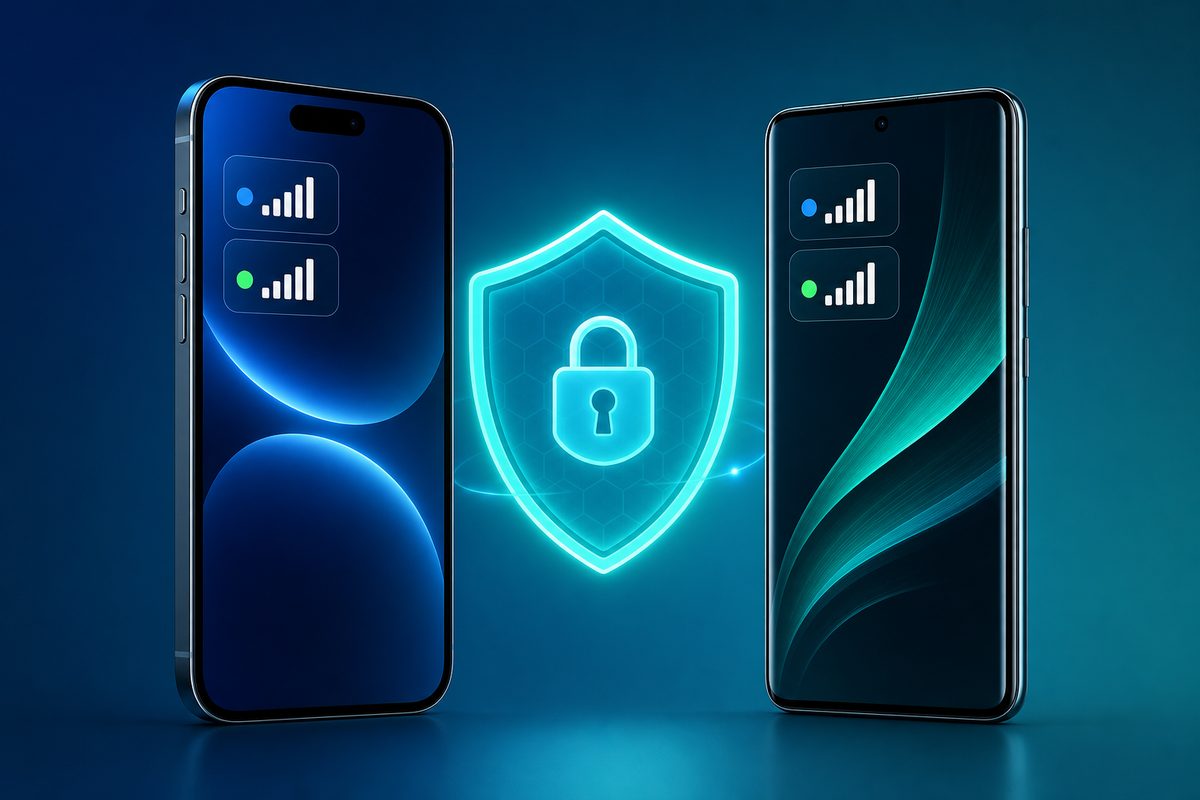
When a physical SIM, eSIM, Wi‑Fi and VPN all run on the same phone at once, failures often look strange: the messenger connects, the browser stays silent, YouTube throws an error, and after switching networks everything comes back to life. This article helps you calmly untangle such situations: where exactly the VPN kicks in, how not to confuse the active data line, and which settings to check without risky experiments.
The material is aimed at a regular iPhone or Android user in 2026: no shady tricks, no promises to "bypass everything", just safe diagnostics, clear scenarios and careful settings. For a stable connection you can start with FoliVPN and then run through the checklist below.
Why eSIM Changes the Usual VPN Diagnostics
An eSIM by itself does not make a VPN faster or slower. What matters more is something else: the smartphone gets more routes to the internet. One number can be the primary one for calls, another for mobile data, Wi‑Fi connects at home, roaming kicks in on a trip, and a VPN profile runs on top of all that.
The official Android documentation describes a VPN as a system-level connection added in the device settings. On iPhone, Apple also treats a VPN as a system setting and configuration, not as a separate browser feature. The practical takeaway is simple: when the VPN is enabled at the phone level, it can affect several apps at once, but the underlying network is still chosen by the device itself — Wi‑Fi, the physical SIM or the eSIM.
In 2026 this is especially noticeable for users who keep two lines: a local SIM for banking and calls, an eSIM for travel or mobile internet, Wi‑Fi at home and a VPN for privacy. The problem may lie not with the VPN service, but with the phone suddenly switching to another data line, applying a private DNS, enabling battery saver, or using an outdated VPN profile.
When a VPN on an eSIM Phone Is Especially Useful
A VPN should be viewed as part of your network hygiene, not as a magic button. It is useful when you connect to hotel Wi‑Fi, work over a public network, want to reduce dependence on a local ISP, or keep the same secure connection on both your phone and laptop.
For eSIM scenarios, there are three common cases.
A Trip and a Temporary eSIM
You buy an eSIM for mobile internet, but some apps are still tied to the primary SIM, the home region, or older network settings. In this situation a VPN helps preserve your usual secure route, but first it is important to make sure mobile data really goes through the intended eSIM.
If travel is a relevant topic for you, it is worth also reading the article on VPN while roaming: it covers in more detail how to prepare your phone before you leave.
Two SIMs: One for Calls, Another for Internet
A common scenario: the physical SIM is kept for calls and SMS, while the eSIM handles the internet. The trouble starts when the phone automatically switches mobile data to the other line due to weak signal or carrier policy. The VPN may reconnect in the process, and apps may show different errors.
After an iOS or Android Update
After major updates, the system sometimes rebuilds network permissions, background restrictions and VPN profiles. If after an update the VPN connects but websites do not open, check not only the VPN app but also the system settings. A similar scenario has already been covered in the article VPN after a phone update.
Quick Table: Where to Look for the Cause of a Failure
| Symptom | Likely area to check | What to do safely |
|---|---|---|
| VPN connected but no internet | Active SIM/eSIM, Wi‑Fi, DNS | Turn off Wi‑Fi for a minute, check the mobile data line, then restore the settings |
| Browser works but YouTube does not | App, network, DNS, cache | Follow YouTube Help's basic logic: check connection, app/browser and device |
| Telegram or mail are silent in background | Battery saver, background data, Always-on VPN | Allow background data for the needed app and check the Always-on VPN mode |
| VPN reconnects often while roaming | Mobile network quality, carrier change, eSIM plan | Pin the eSIM for data and test without automatic switching |
| Errors remain after removing the VPN | Old profile or Private DNS | Check the list of VPN profiles and Private DNS in system settings |
Setup on iPhone: What to Check with an eSIM
On iPhone, first separate two tasks: which line provides the internet and which VPN profile connects on top of it. This reduces the risk of endlessly turning the VPN on and off without addressing the real cause.
1. Check the Mobile Data Line
Open Cellular settings and see which SIM or eSIM is selected for mobile data. If automatic cellular data switching is enabled, the phone may change the line when the signal is weak. For diagnostics it is better to temporarily pick one line manually, check sites and apps, and then return to your preferred mode.
2. Check the VPN Profile
In iPhone settings, find the VPN & Device Management section. Make sure the active profile is the one you actually use right now. It is better not to keep old corporate, test, or remote profiles enabled "just in case": they may define routes that no longer match your network.
3. Do Not Mix Diagnostics with a Full Reset
Resetting network settings is a last resort, because it affects Wi‑Fi, passwords and other network parameters. Before that, go through a gentler path: restart the VPN, check the active eSIM, open a couple of ordinary websites, then test the problematic app.
Setup on Android: eSIM, Always-on VPN and Private DNS
Android offers more options, but because of that diagnostics can be less obvious. Official Google help separately describes connecting to a VPN and additional network settings, including Private DNS. For the user this means: if an app does not open under a VPN, you should check not a single switch, but the chain "active network → VPN → DNS → background restrictions".
1. Make Sure Data Goes Through the Right SIM
In SIM settings, pick the eSIM or the physical SIM for mobile data. Some Android skins have separate rules for calls, SMS and internet. Do not rely on the network icon alone: open the system SIM cards section and check the mobile data item specifically.
2. Check Always-on VPN
Always-on VPN is handy when you do not want to accidentally go online without a secure connection. But if blocking connections without VPN is enabled, when the tunnel fails the phone may look as if "the internet is broken". For diagnostics it is important to understand: this is not necessarily an issue with the carrier or eSIM — sometimes it is the expected behavior of the chosen security mode.
3. Check Private DNS
Private DNS can be a useful setting, but combined with a VPN it sometimes creates a double point of failure. If some apps open and others do not, temporarily compare how things work with automatic DNS versus your custom DNS. Do not copy random DNS addresses from forums: use only settings you understand and write down what you changed.
A Practical 10-Minute Diagnostic Checklist
- Record the initial state: whether Wi‑Fi is on, which SIM/eSIM is selected for data, which VPN profile is active.
- Turn off Wi‑Fi and check mobile internet without changing other settings.
- Connect the VPN and open an ordinary website, then the problematic app.
- If the problem is only in one app, check its update, cache, background data and network permissions.
- If the problem affects all apps, check the VPN profile, Always-on or Kill Switch mode, then DNS.
- Turn Wi‑Fi back on and repeat the check: this way you will understand whether the failure is tied to the mobile eSIM or to any network.
- Do not change five settings at once: after each step, run a short test.
Common Scenarios and Solutions
YouTube Shows a Playback Error
Google's YouTube Help suggests starting with the basics: connection, app or browser, device and network. In a VPN scenario, add a check of the active eSIM and DNS to that. If YouTube does not work only on mobile data but opens over Wi‑Fi with the same VPN, the cause is more likely the mobile network, the plan, roaming or a SIM switch.
The Messenger Connects Only After Turning Off the VPN
Check whether background data is restricted and whether aggressive battery saving is enabled. On Android, also look at Always-on VPN and Private DNS. On iPhone, check whether an old VPN profile remained after installing another app.
The Banking App Complains About the Network
Some apps are sensitive to the network environment and may restrict login on an unusual connection route. Do not try to bypass their protective mechanisms. The safe approach is to temporarily use a d
Use the smallest safe checklist
Open Foli, refresh the subscription and test one network and one route before changing everything.