
VPN Split Tunneling in 2026: Route Only the Apps You Need Through VPN
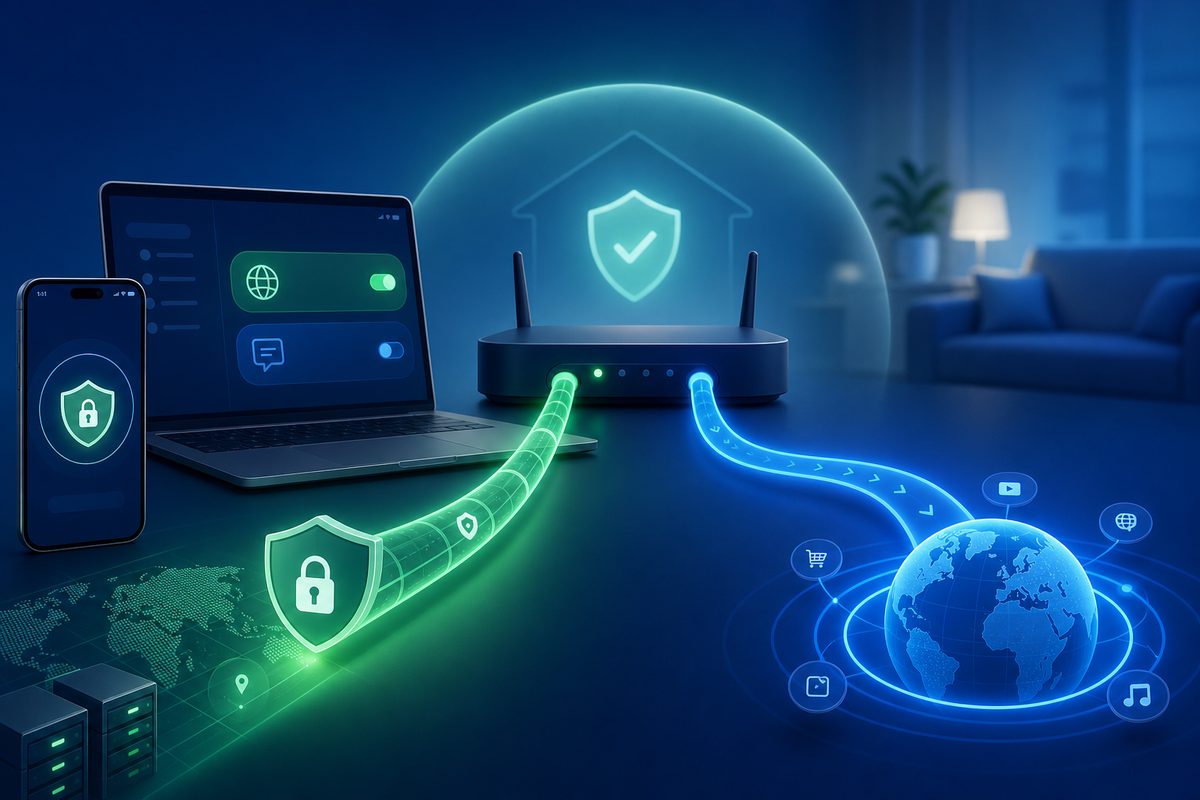
In 2026, the old "flip the VPN on for the whole device and forget it" approach increasingly breaks everyday tasks: some services open better through a VPN, others refuse to let you sign in with one, and a third group depends on DNS or region. VPN split tunneling lets you stop toggling the switch manually — you decide in advance which apps go through the VPN and which connect directly. Below is a safe, practical breakdown without any gray-area instructions: when it helps, where the limits are, and how not to ruin your privacy.
Why this topic matters right now
Recent publications and reference materials reveal several steady trends. First, Russia continues to see targeted issues with access to major platforms: in February 2026, Meduza reported on DNS-related restrictions around YouTube, Telegram, and other services, specifically noting that a DNS-based scenario differs from a classic IP block. Second, some Russian apps and websites may conflict with an active VPN: in April 2026, industry outlets wrote about user complaints regarding signing in to Gosuslugi with a VPN turned on. Third, mobile operating systems have become stricter about network profiles, DNS, and background restrictions.
The main takeaway: the issue is no longer simply "does the VPN work or not." What matters is which traffic you send through the tunnel and which you leave on the regular connection. That is exactly what split tunneling does.
What VPN split tunneling is, in plain language
Split tunneling is a routing setting. It divides your internet traffic into two groups:
- Through the VPN tunnel — for example, a browser for foreign sites, YouTube, Telegram Desktop, a work messenger, or any app that needs a different route.
- Directly through your ISP — for example, your bank, a marketplace, a local delivery service, Gosuslugi, or a game where latency is critical.
There are two popular modes:
- Exclude certain apps from the VPN: all traffic goes through the VPN, but the selected apps bypass the tunnel;
- Inverse split tunneling: by default, everything goes directly, and only selected apps use the VPN.
Commercial VPN providers describe this feature in a similar way: the user picks the apps that are routed through the secure connection and the apps that use the regular internet. It is not magic and not a way to "break internet filters" — it is basic network hygiene: fewer conflicts, clearer control, and a lower risk of accidentally sending the wrong service over the wrong route.
When split tunneling is genuinely useful
1. Banks, government portals, and local services don't like VPNs
If an app shows a login error, asks you to turn off the VPN, or just spins forever, you don't always need to disable protection for the whole phone. It's often smarter to take a specific app out of the tunnel. That way you don't break everything else: your messenger or browser keeps working over the chosen route, while the bank opens directly.
This is especially convenient on a smartphone, where users constantly switch between foreign and local services. Instead of a manual "on — off" dance, you get a predictable rule.
2. YouTube, Telegram, or Discord need a different route
For media and communications, DNS stability, UDP/QUIC, latency, and node availability all matter. If all traffic goes directly, some services may load poorly. If all traffic goes through the VPN, local apps start complaining. Split tunneling offers a middle ground: only apps with access issues are sent through the VPN.
Important: don't use shady utilities with unclear certificates, system drivers, and promises to "bypass everything." For a regular user, it's safer to stick to features built into a well-known VPN app, your OS, or your router.
3. Games, calls, and video chats suffer from latency
A VPN can add a route through another country or an overloaded server. For a browser that's tolerable, but for a voice chat or game it's noticeable. If a specific game is accessible directly anyway, don't push it through the tunnel. And if Discord or another voice service only works through the VPN, keep it on VPN while leaving the rest alone.
4. You need to split devices on a router
A family scenario: the TV or set-top box should go through the VPN, while the work laptop and banking apps connect directly. On some routers and firmware, this is handled with per-device or per-group rules. This approach is more convenient than installing a VPN on every gadget, but it requires more attention: a mistake in routes or DNS will affect the entire household at once.
Table: which mode to choose
| Scenario | Better choice | Why |
|---|---|---|
| Phone for everyday use | VPN only for selected apps | Fewer conflicts with banks, government services, delivery, and local apps |
| Laptop for work and public Wi‑Fi | VPN by default + exceptions | More traffic is protected, but local services can be sent directly |
| Router for a TV or set-top box | Per-device rules | No need to install apps on every screen |
| Games and voice chats | Test both modes | Sometimes a VPN improves access, sometimes it worsens latency |
| Family with different devices | Split by device with clear labels | Easier to see who goes through the VPN and who doesn't |
How to set it up safely: the general workflow
Step 1. Decide what should actually go through the VPN
Don't jump straight into settings. First, list your apps:
- "VPN required" — for example, a browser for specific sites, YouTube, Telegram, work tools;
- "better direct" — banks, government services, local marketplaces, navigation, delivery;
- "check separately" — games, video calls, voice chats.
Such a list reduces the risk of accidentally pushing all traffic outside the VPN — or, conversely, dragging into the tunnel something that will then stop working.
Step 2. Pick the mode: regular or inverse
For a smartphone, inverse mode is usually more convenient: only selected apps use the VPN. The reason is simple: phones run many local services that don't need a VPN. For a laptop, it depends on your tasks. If you often work from cafés, airports, and shared Wi‑Fi, it makes more sense to keep the VPN on by default and exclude only the apps that conflict with it.
Step 3. Check DNS separately
DNS is a frequent cause of "weird" symptoms: a site won't open, an app sees the wrong region, video loads but images don't. Android's documentation notes that Android has a Private DNS setting, and Google recommends not turning it off without reason. In practice, this means: if the VPN behaves unstably, don't change three things at once — the server, the protocol, and DNS. Change one parameter at a time and write down the result.
Step 4. Don't install random profiles on iPhone
Apple specifically explains that configuration profiles can set network and VPN parameters, and installed profiles are visible under Settings → General → VPN & Device Management. When you remove a profile, the associated settings, apps, and data are removed too. So a VPN profile should come only from a service you trust. If a website offers a "profile to speed up your entire internet" with no clear origin — that's a red flag.
Step 5. Verify the result with three tests
After setup, open:
- an app that should go through the VPN;
- an app that should go directly;
- an IP/DNS check site in your browser, if the browser is on one of the routes.
If everything opens but speed is worse, try another server or exclude heavy apps: cloud backups, game updates, torrents, and streaming video can clog the tunnel.
Checklist before publishing your rules
- I understand which apps go through the VPN and which go directly.
- Banking and government apps are not routed through the VPN unnecessarily.
- The browser is not accidentally excluded from the VPN if it's used to open sensitive sites.
- On Android, Private DNS has been checked, but not disabled "just in case."
- On iPhone, installed VPN profiles and their sources have been verified.
- On the router, rules are labeled with clear device names.
- After changing rules, I've checked IP, DNS, and real apps — not just the "VPN icon."
Common mistakes
Mistake 1. "I'll just exclude the entire browser, it's easier"
It's convenient, but bad for privacy. A browser is a universal door: through it you can open a local bank, a foreign service, and a work dashboard. If you send the whole browser direct, the VPN stops protecting most of your web activity. It's better to use a separate browser profile or a separate browser for the VPN route, if the app allows it.
Mistake 2. Changing everything at once
A user changes the server, the protocol, DNS, the split tunneling mode, and battery settings — and then can't tell what actually helped. Make one change at a time. It's boring, but it works.
O
Use the smallest safe checklist
Open Foli, refresh the subscription and test one network and one route before changing everything.