
Split Tunneling VPN: How to Enable VPN Only for Specific Apps in 2026
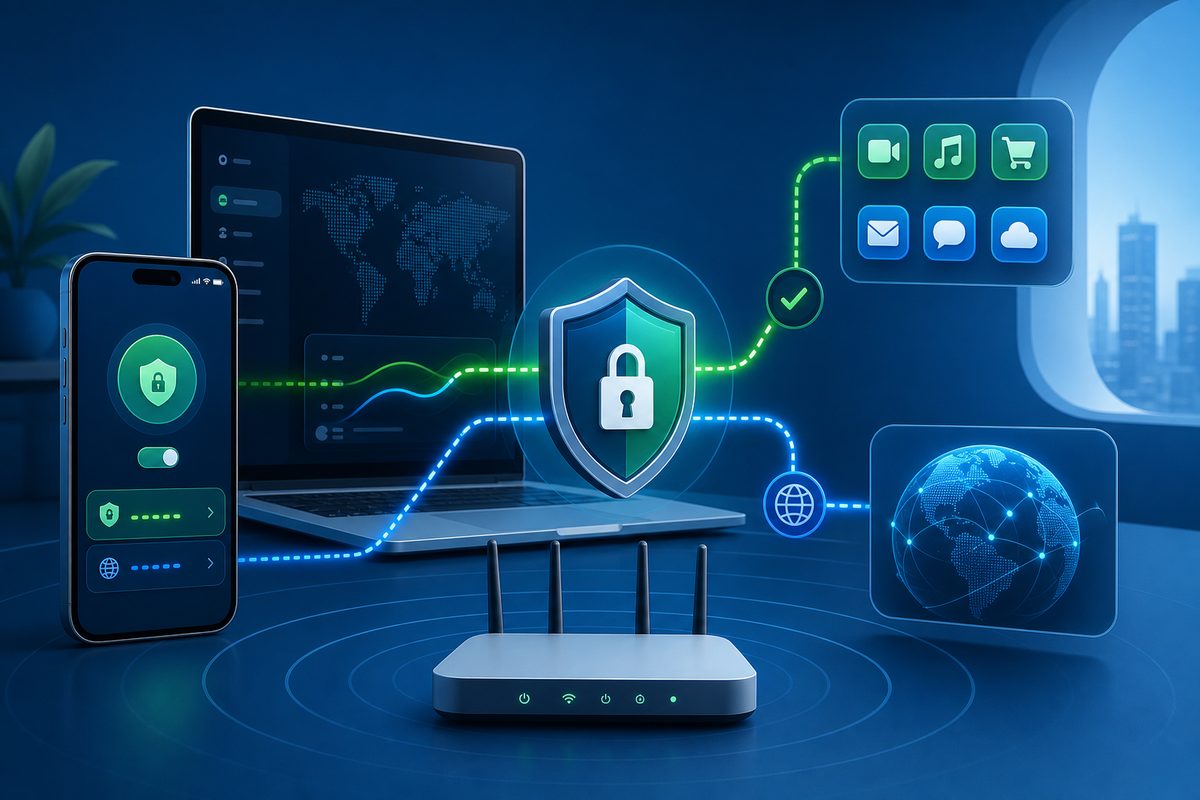
If you need a VPN for Telegram, YouTube, Discord or a specific work service, it's not always sensible to push all the traffic from your phone, laptop or router through the tunnel. A split tunneling VPN lets you choose which apps go through the VPN and which stay on the regular network. As a result, it's easier to preserve speed, local devices, banking apps and stable notifications — without resorting to risky workarounds.
What a Split Tunneling VPN Is in Plain Words
A split tunneling VPN is a mode of separate routing: part of the traffic goes through the encrypted VPN tunnel, while another part goes directly through your ISP, mobile network or home Wi‑Fi. In practice it works like a switch: "these apps go through the VPN, everything else as usual."
There are two main scenarios. The first is an inclusion list: only selected apps or websites go through the VPN. For example, a messenger, a voice chat, a browser for work resources. The second is an exclusion list: the VPN is enabled for the entire device, but specific apps, the local network or banking services are excluded from the tunnel.
Important: split tunneling is not a way to break service rules or laws. It's a tool for network hygiene and convenience. It helps you avoid breaking things that shouldn't go through a VPN: payments, smart devices, printers, a local NAS, corporate services with strict sign-in policies.
When Split Routing Is Genuinely Useful
In 2026, users more often run into not abstract "VPN works/doesn't work" issues, but pinpoint problems: everything opens in the browser, but the app hangs; Discord calls have lag; YouTube buffers on the TV; the bank asks for re-verification; the local printer disappears from the network. Split routing offers a more careful way to diagnose problems than constantly turning the VPN on and off.
Typical tasks:
- keep the VPN only for Telegram, Discord or a specific browser;
- avoid sending banking and government apps through a foreign IP;
- preserve access to local devices at home;
- reduce unnecessary load on the tunnel during downloads, streaming and updates;
- separate work and personal traffic on a laptop;
- check exactly which program conflicts with DNS, QUIC/HTTP/3 or the route.
On the FoliVPN page it's convenient to start from a basic idea: a VPN should solve a specific task, not complicate your entire network. If the problem looks like a platform glitch, check the related guides: VPN on Windows 11 not working and VPN on Mac not working. For TV scenarios, VPN on Android TV will come in handy.
How to Choose the Mode: Only Selected Apps or Exclusions
Before setting things up, answer one question: do you need to protect almost the entire device, or just a few apps?
| Scenario | Better choice | Why |
|---|---|---|
| VPN needed only for Telegram, Discord or a browser | Only selected apps through the VPN | Minimum side effects for banks, games and the local network |
| Need to protect public Wi‑Fi in a hotel or café | Everything through VPN, except exclusions | More coverage for an unknown network |
| Bank, printer or Chromecast doesn't work | Exclude a specific app/local network | Fewer conflicts with geolocation and LAN discovery |
| On the router, VPN is needed only for the TV or set-top box | Rules per device | Phones and laptops don't lose speed |
| Diagnosing an app error | Temporarily enable VPN only for the app being tested | Easier to understand where the problem is: DNS, route or the service itself |
If in doubt, start with the narrowest mode: just one app through the VPN. That way you'll see the effect faster and won't create new problems.
Setup on Android: What to Check First
Android officially supports adding a VPN profile in the network settings, as well as Always-on VPN mode for a persistent connection. Menu names differ across skins, but the logic is similar: "Settings" → "Network & internet" → "VPN" or the security/connections section. If the VPN app supports split tunneling, the setting is usually inside the app itself, not in the system menu.
A practical order:
- Update the VPN app and the connection profile.
- Turn on the VPN and check whether the internet works in a regular browser.
- Open the split tunneling, "exclusions" or "apps through VPN" section.
- Choose one mode: either only the needed apps through the VPN, or exclusions from the VPN.
- Add Telegram, Discord, YouTube or a separate browser — but not the entire list at once.
- Check notifications, calls and sign-in to banking apps.
- If some apps don't open, temporarily disable Private DNS or switch it back to "Automatic" for a test.
Separately, check Always-on VPN and "block connections without VPN." These are useful privacy features, but with an incorrect profile they can completely cut apps off from the network. If after enabling such a mode even regular page loading doesn't work, first restore basic access and only then configure split routing.
Setup on iPhone and iPad: Where the Limits Are
iOS supports VPN configurations through system settings and profiles, and Apple describes VPN as part of the device's network settings. But the flexibility of split tunneling on iPhone usually depends on the specific VPN app, a corporate MDM profile or the chosen protocol. That's why not every app on iOS gives you the same manual list of programs as Android.
What you can do safely:
- check whether there is an old VPN profile that conflicts with the new one;
- update the VPN app and iOS;
- disable extra VPN configurations if there are several;
- check whether a private Wi‑Fi address, a corporate profile or a separate DNS filter is interfering;
- use a separate browser for tasks that need a VPN, if the app doesn't support a split list;
- for home devices, move the rules to the router, where it's easier to split traffic by device.
If the iPhone shows the VPN icon but apps hang, test in order: network without VPN, then VPN, then a single app.
Split Tunneling on a Router: When It's Better to Split by Devices
On a router, split tunneling more often looks not like a list of apps, but like a list of devices or routing rules. For example: Smart TV and the set-top box go through the VPN, while phones, laptops and the smart speaker go directly. This is especially convenient if your TV doesn't support VPN apps or if you don't want to touch the whole home network.
The router approach is good for:
- Android TV, Fire TV, game consoles and media players;
- devices without a full-fledged VPN client;
- a family network where not everyone needs a VPN;
- preserving speed on work laptops;
- carefully separating the local network and external traffic.
But there are downsides. Not every router supports a WireGuard or OpenVPN client. Sometimes you need alternative firmware, a dedicated VPN router or a "second router behind the main one" setup. For recent devices we've already covered specific cases: VPN on a TP-Link router and VPN on a Xiaomi router. If you're not sure, don't start with flashing — start with checking the model, firmware version and available VPN Client modes.
Diagnostic Checklist: If Something Breaks After Split Tunneling
Use this order so you don't go in circles:
- Check the internet without VPN on the same network.
- Enable the VPN for a single app, not for all at once.
- Compare Wi‑Fi and the mobile network.
- Make sure two VPN profiles aren't active at the same time.
- Temporarily disable Private DNS, ad filters and firewall apps.
- Check the device's date and time: TLS errors are sometimes related to them.
- Switch the protocol if the VPN app offers WireGuard/OpenVPN/IKEv2.
- For calls in Discord or messengers, check UDP: some networks throttle voice traffic.
- For YouTube, check video quality and disable experimental network flags in the browser if you changed them manually.
- On the router, save a backup of the settings before changing routes.
The rule is simple: one change — one test — a short note about the result.
Safe Boundaries: What You Shouldn't Do
Don't use split tunneling to bypass anti-fraud systems, mass-register accounts, violate platform rules or hide malicious activity. Many services evaluate not just the IP, but also the device, sign-in behavior, payment profile and session history. Trying to "mask" everything through a VPN can lead to account suspension or additional verification.
Don't turn off all protective features for the sake of speed: exclude only what actually conflicts with the tunnel.
Mini-Scenarios for Popular
Use the smallest safe checklist
Open Foli, refresh the subscription and test one network and one route before changing everything.