
TLS Handshake Failed VPN: What to Do in 2026 When the Connection Drops at Startup
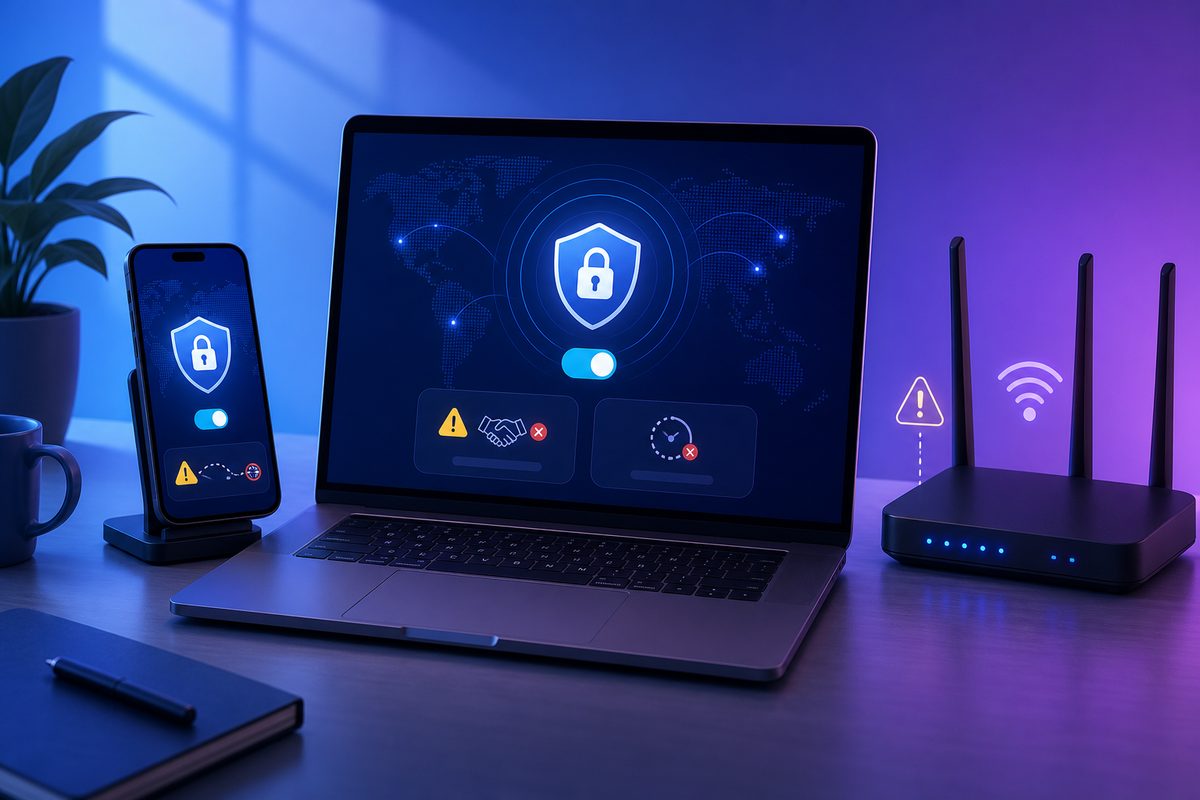
The TLS handshake failed VPN error looks scary, but most of the time it doesn't mean "everything is broken." It points to a very specific failure at the initial handshake stage: the client and the server couldn't agree on a secure channel. In 2026, on top of the usual reasons, Russian users have to deal with traffic filtering, unstable routes, DNS issues and outdated profiles. Below is a practical, safe diagnostic flow — without sketchy commands and without instructions on how to break the law.
If you just need a simple VPN for everyday tasks, start with the FoliVPN landing page and keep a few basic guides from the archive handy: VPN connected but no internet and VPN not working on Windows 11. This article complements them: the focus here is specifically on the TLS error during connection.
What TLS handshake failed VPN means in plain words
A TLS handshake is the "hello" between the VPN client and the server. Before any normal traffic is exchanged, both sides verify encryption parameters, certificates, keys, time, the server address and whether the required port is reachable. If any of these steps fails, the client may show messages like:
TLS Error: TLS handshake failed;TLS key negotiation failed to occur within 60 seconds;connection timeout;certificate verify failed;- "could not establish a secure connection."
Important: identical-looking error text doesn't always mean the same root cause. In one case the server is unreachable due to the network or filtering. In another the profile is outdated. In a third the phone has the wrong date and time. So the right strategy is not to "tweak everything at once" but to rule out causes one by one.
Why this error became more common in 2026
According to data published by Kommersant and reprinted in industry media, by January 2026 Russia had restricted 439 VPN services, and by the end of February — 469. The same reports note that since late 2025, restrictions have increasingly targeted not just individual services but also protocols like SOCKS5, VLESS and L2TP. Habr, in a review on the topic, separately highlighted the role of DPI (TSPU) systems and traffic "fingerprint" analysis: IP addresses, ports, encryption types and connection patterns.
For the end user this rarely looks like a polite system notification. Instead, it shows up as a household symptom: yesterday the VPN connected, today it hangs at startup, and tomorrow it only works on a different network. Apple's own help page reminds users that VPNs and third-party security software can interfere with regular internet access, App Store, iMessage, FaceTime and local devices. In other words, diagnostics should consider both the external network and the device's own settings.
At the same time, don't jump to the conclusion that every TLS error means blocking. In practice the same symptoms can come from expired certificates, identical profiles shared between multiple users, wrong DNS, antivirus conflicts, incorrect time and a plain old unreachable server.
Quick table of causes and actions
| Symptom | Likely cause | What to check first |
|---|---|---|
| Error appears after 30–60 seconds | server or port unreachable, filtering, firewall | another network, another server in the app, service status |
certificate verify failed or similar text | expired/mismatched certificate, old profile | refresh the profile or subscription, do not edit keys manually |
| Works on Wi‑Fi but not on LTE | mobile network quirks, APN, filtering, IPv6/DNS | compare Wi‑Fi and mobile internet, check Private DNS |
| Phone stops working after an update | profile conflict, date/time, system settings | OS updates, reboot, search for "VPN/profile/filter" |
| Connects but websites don't open | DNS or routes after the handshake | separate DNS and split tunneling diagnostics |
| Only one user can connect | profile used on several devices | check the device limit and profile uniqueness |
Checklist: what to do without risking your settings
- Save the original data. Take a screenshot of the error and don't delete the profile until diagnostics are complete. If you later contact support, this will save time.
- Check the internet without VPN. Turn the VPN off and open a few regular websites. If the internet itself doesn't work, TLS has nothing to do with it.
- Check date, time and time zone. Apple specifically recommends starting network diagnostics with this. For TLS it's especially important: certificates are validated against the current time.
- Restart the device and router. It's not magic — it resets stuck network states, the DNS cache and temporary sessions.
- Try a different network. If the error only shows up on mobile data while your home Wi‑Fi is fine, the cause may be on the carrier's network or its filters.
- Try a different server inside the same app. Don't change all settings at once: switch only the server/location first, then test.
- Update the app and the profile. An old
.ovpn, QR code or subscription may point to a server, port or certificate that is no longer valid. - Check for conflicting apps. Antivirus tools, firewalls, content filters, parental controls and corporate profiles can intercept network connections.
- Don't copy other people's configs. A TLS error is often tied to the identity of certificates and keys. A public "working config from a chat" may be unsafe and unstable.
Step 1. Split the problem: network, app or profile
The most useful test is to compare three scenarios: without VPN, with VPN on a different network, and with a different server. For example, if at home over Wi‑Fi the VPN connects but on mobile data it fails with TLS key negotiation failed, the profile itself is most likely fine. If nothing works anywhere and on all devices, the issue is more likely with the server, subscription or certificate.
If the problem is on one device only, look for a local conflict. On iPhone and iPad, open Settings and search for "VPN", "profile", "filter". On Mac, Apple also advises checking security apps and login items. On Android, check "Always-on VPN", the "Block connections without VPN" mode and Private DNS. We've covered a similar scenario in detail in Always-on VPN Android blocks internet.
Step 2. Check certificates and the profile without manual surgery
For OpenVPN setups, the TLS error is often tied to certificates and profile parameters. NETGEAR's knowledge base describes a case for the BR500: tls handshake failed appeared when the router couldn't authenticate the OpenVPN client certificate; the listed reasons included an outdated certificate and the same certificate being used by multiple users. For that model NETGEAR suggested adding remote-cert-tls server to the .ovpn file, but this is not a universal command for all services.
For a regular user, the safer path is:
- re-download the profile or refresh the subscription from your VPN account;
- delete only the old profile inside the app, without touching system network settings;
- import the fresh QR/link/file;
- test the connection on one device;
- if the service limits the number of devices, don't share the same profile with the whole family.
Don't edit keys, certificates or ca/cert/key blocks unless the provider gave you exact instructions. A single wrong character can turn a clear problem into chaos.
Step 3. DNS: why the handshake succeeds but websites still won't open
Sometimes a user sees the TLS error once, then the connection seems to come up — but websites still don't load. That's already a DNS issue. OpenVPN's documentation on DNS stresses that different operating systems handle DNS differently: not all of them fully support split DNS, and some systems may query several DNS servers at once and take the first answer.
What to check:
- temporarily disable Private DNS / Secure DNS if it's enabled separately from the VPN;
- check whether the site opens by domain name and whether other apps have internet;
- if your VPN client supports "use VPN DNS", enable it according to the provider's instructions;
- on the router, don't mix the ISP's DNS, the VPN's DNS and a third-party filter without understanding the routes.
If the main symptom is specifically domain errors like DNS_PROBE_FINISHED_NXDOMAIN, it's better to follow the dedicated guide DNS_PROBE_FINISHED_NXDOMAIN VPN rather than treat everything as a TLS issue.
Step 4. Protocol, port and server: what to change and what to leave alone
In 2026, some of the issues really are linked to the availability of protocols and servers. But there's no need to turn this into a settings race. If the app has official options — for example, "auto", "TCP", "UDP", "backup server", "obfuscation" — switch them one at a time and test the result after every change.
A practical order:
- Switch to a different server in the same country or region.
- Switch the region to the nearest geographically available one.
Use the smallest safe checklist
Open Foli, refresh the subscription and test one network and one route before changing everything.