
VPN on Fire TV Stick: How to Set It Up and What to Check in 2026
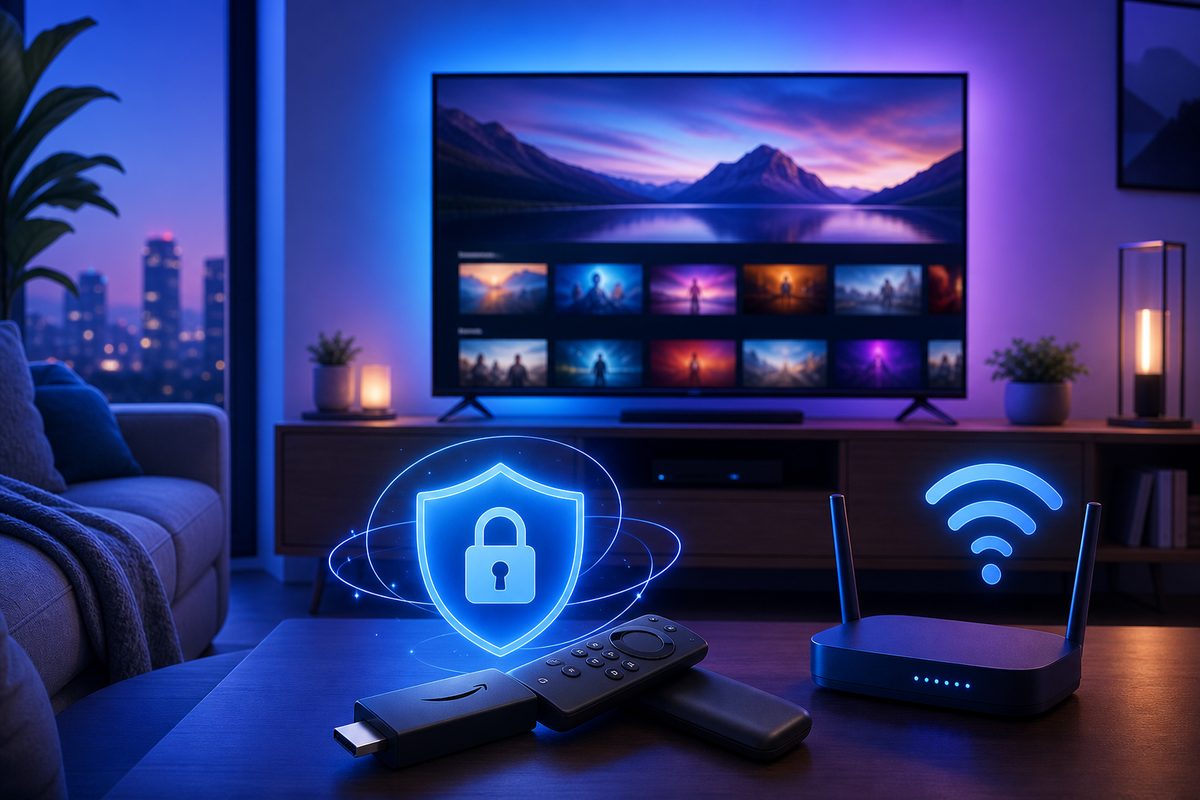
The Fire TV Stick is often bought as a simple way to revive an old TV, but in 2026 "just plug it into HDMI" no longer always means "everything works smoothly." If YouTube buffers, an app can't see the network, and the VPN behaves differently than it does on your phone, it's important to understand the connection setup itself rather than chase myths. Below is a safe walkthrough: when to install a VPN directly on the streaming stick, when to use a router instead, and what checks to run before contacting support.
Why a VPN on Fire TV Stick has become its own task
The Fire TV Stick isn't an ordinary browser on a computer. The device lives behind your TV and depends on Wi‑Fi, HDMI power, the app store, the router's DNS, and the quality of each specific streaming app. That's why the same VPN subscription can work fine on an Android phone but cause buffering or a blank screen on TV.
The main user intent here is informational: to understand which setup fits your particular home, not to get risky workaround instructions. Three things matter for stable viewing: legitimate access to the service, a predictable traffic route, and no conflict between VPN, DNS, and the router. If you need a ready-to-use VPN for everyday home scenarios, start with the FoliVPN landing page and use this article as a diagnostic map.
Three working connection setups
| Setup | When it fits | Pros | Cons |
|---|---|---|---|
| VPN app on Fire TV | The service has a Fire TV app and you only need to protect the streaming stick | Easy to turn on/off, doesn't affect phones and laptops | Depends on app availability and the stick's own resources |
| VPN on the router | You want to connect TV, console, and other devices without separate apps | Works for the whole home network or selected devices | Trickier setup, DNS, routes, and router performance all matter |
| VPN via a second router/access point | The main router can't run a VPN client or you don't want to touch the whole network | You can dedicate a separate "TV" Wi‑Fi network | One more device, more places for things to go wrong |
Official Android and router vendor docs agree on the basic logic: a VPN must be configured at the device or network level, and then you need to verify that internet, DNS, and apps actually go through the chosen route. For Fire TV this is especially noticeable: the interface may show a Wi‑Fi connection, but a specific app still fails to load video because of DNS, weak signal, or a route through an overloaded server.
Option 1: VPN app directly on the Fire TV Stick
The most straightforward path is to install a VPN app, if your provider supports Fire TV. Some VPNs, for example, have dedicated instructions for Amazon Fire TV and Fire TV Stick: the user installs the app on the stick, signs in, and picks a server. This is convenient because you don't need to change router settings or risk your entire home network.
A safe, practical order:
- Make sure the Fire TV Stick is connected to stable Wi‑Fi and powered by a proper adapter, not a weak USB port on the TV.
- Install only the official VPN app from an available store or from the provider's official website. Don't use random APKs from forums.
- Sign in, pick the closest stable region rather than the most distant one "for speed."
- Open YouTube or another legitimate service and check playback quality on automatic resolution.
- If video loads worse, switch servers, restart the app, and check speed on another device on the same Wi‑Fi network.
Important: don't aim to "bypass a service's rules." Streaming platforms have their own terms of use and regional licenses. This article is about privacy, stability, and diagnostics, not about breaking restrictions.
Option 2: VPN on the router for Fire TV
If there's no Fire TV VPN app, or you want to cover the TV, the stick, and the console at once, it makes more sense to consider a VPN client on the router. This approach has been covered in neighboring articles: see VPN on an ASUS router and the general guide VPN on a router and home internet. For Fire TV the idea is the same: the stick connects to Wi‑Fi, and the router itself sends its traffic through the VPN.
In practice, it's better not to enable the VPN "for the whole house" right away. Start with a mode where only the Fire TV Stick or a separate guest network goes through the VPN. On many modern routers this is called VPN Client, VPN Fusion, Policy Based Routing, Device List, or something similar. The names differ, but the meaning is the same: pick specific devices that go through the tunnel.
Minimum router checks:
- a VPN client is enabled, not a VPN server for remote access to home;
- the Fire TV Stick is on the list of devices that should go through the VPN;
- DNS doesn't conflict with Private DNS/DoH on other devices;
- the router isn't overheating and isn't bottlenecked by a weak CPU;
- after changing settings, the stick has been reconnected to Wi‑Fi.
If everything becomes slow after enabling router-level VPN, the problem may not be Fire TV but the router hardware. Encryption needs resources. Older or budget models often deliver noticeably lower speeds through a VPN than directly.
Option 3: a separate Wi‑Fi network just for the TV
A compromise option is a second router or a separate access point where the VPN is enabled only for the TV. This is useful if your main Wi‑Fi hosts banking apps, work services, printers, and smart devices that don't like route changes. You don't break the home network — you simply create a separate segment for the media stick.
The setup looks like this: the main internet stays as is, the second router connects to it by cable or via WAN, the VPN client is enabled on the second router, and the Fire TV Stick connects to the second router's Wi‑Fi. To the user it appears as a separate network, for example TV-VPN. If something goes wrong, it's enough to move the stick back to the regular Wi‑Fi.
This approach has one downside: local features may behave differently. For example, casting from a phone to the TV, access to a home NAS, or control from a mobile app sometimes require devices to be on the same network. If the phone is on the main network and the Fire TV is behind the second router, they may not "see" each other.
Why YouTube via VPN on Fire TV lags
YouTube itself recommends, when playback issues happen, checking the internet connection, restarting the app, the device, and adjusting video quality. For Fire TV via VPN the list grows: the usual causes are joined by distance to the VPN server, congestion on 2.4 GHz Wi‑Fi, a weak router, and unstable DNS.
Don't start with drastic actions. First check the simple things:
- switch the Fire TV to the 5 GHz band if available and the signal is stable;
- set video quality to "Auto" and see if buffering disappears;
- switch the VPN server to the geographically closest one;
- restart the Fire TV Stick and the router;
- compare the same clip on your phone on the same Wi‑Fi network;
- temporarily disable the VPN and check whether the problem remains.
If video works perfectly without a VPN but not with one, it's not always a "bad VPN." Sometimes the router can't handle encryption, Wi‑Fi is unstable behind the TV, and USB power to the stick sags. First rule out the physical layer: power, signal, and overheating.
DNS, apps, and "connected but nothing opens"
A common situation: the VPN shows "Connected," but apps on Fire TV won't open or freeze. In articles about Android, Google describes VPN configuration on the device separately, but the Fire TV stick may have fewer visible network settings than a smartphone. So part of the diagnostics shifts to the router.
Check DNS at three levels: in the VPN app, in the router settings, and on the ISP side. If the router forces one DNS while the VPN expects another, apps may behave unpredictably. Similar logic was already covered in DNS_PROBE_FINISHED_NXDOMAIN VPN: the error isn't always with the site — it's often domain name resolution that breaks.
A safe test: open several different legitimate apps, not just one service. If only YouTube doesn't work — that's one scenario. If nothing works, including the app store and updates, look for the problem in Wi‑Fi, DNS, or the VPN route.
Checklist before contacting support
- The Fire TV Stick model and Fire OS version are written down.
- Connection tested both without VPN and with VPN.
- You know which setup is in use: app, router, or separate Wi‑Fi network.
- 2–3 VPN servers tested, including the closest one.
- Fire TV is connected to a stable 5 GHz network or the best available access point.
- Router rebooted after changing VPN/DNS.
- Verified that the problem isn't limited to a single app.
- A screenshot of the error or the exact
Use the smallest safe checklist
Open Foli, refresh the subscription and test one network and one route before changing everything.