
VPN IPv6 Leak: Why Sites See an Extra Address and What to Check in 2026
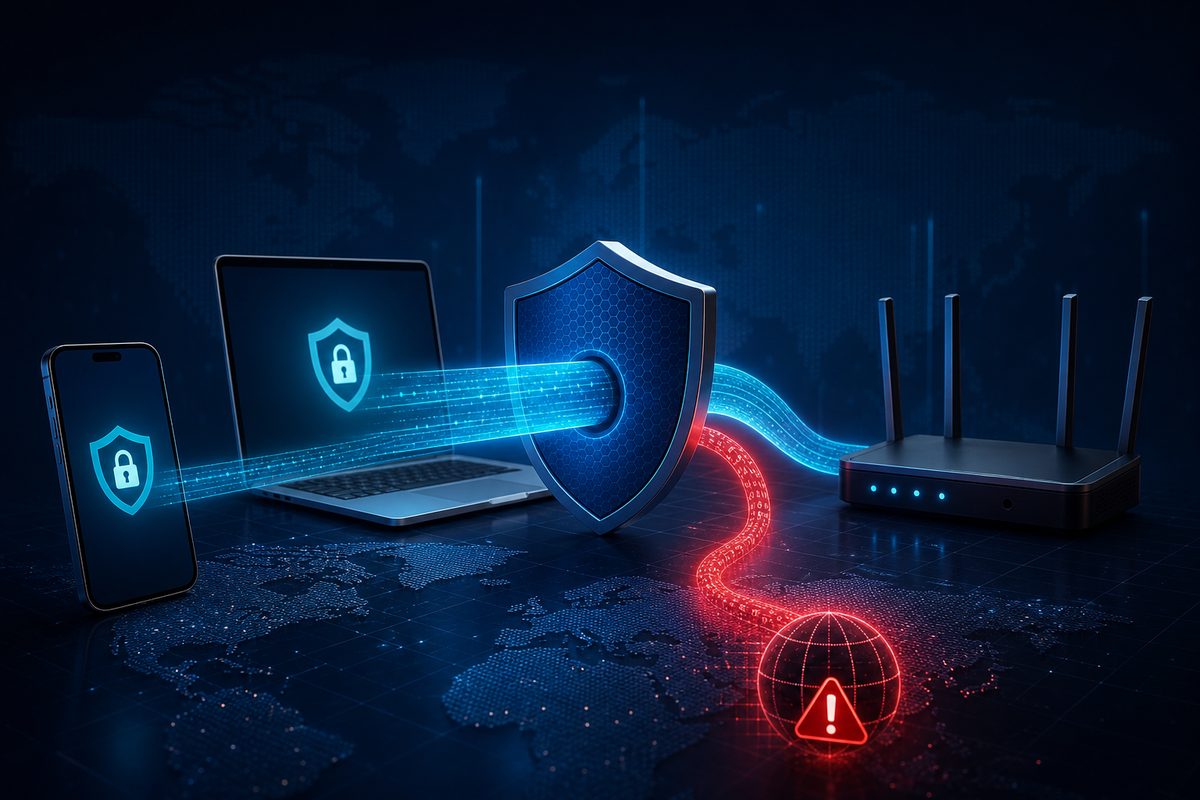
If your VPN is on but tests still show your ISP address, the cause is often not a "bad VPN" but a parallel IPv6 route or a DNS path. In 2026 this is especially visible on mobile networks, modern routers and devices where apps pick their own fast connectivity stack. Below is a safe checklist: how to tell whether there is a leak, how not to break Telegram, YouTube and Discord, and when it makes more sense to change settings rather than switch services.
Why IPv6 has become a bigger deal
Many VPN guides are still written as if the internet were IPv4 only. In practice your device may have two paths at once: legacy IPv4 and modern IPv6. If the VPN app confidently grabs IPv4 but does not handle IPv6, some requests can slip past the tunnel. That does not mean every user instantly exposes everything, but for privacy and stability it is an unpleasant scenario.
It is important to separate three different things:
- IP leak — a site or test sees an address that belongs to your ISP, not the VPN server.
- DNS leak — domain queries go not through the VPN's DNS but to a third-party or ISP resolver.
- Route conflict — the VPN is connected, but apps, video or calls work unstably due to a mix of IPv4, IPv6, DNS, DoH/DoT and split tunneling.
Google's Android help describes the system VPN settings, "Always-on VPN" and notifications when the connection drops. Apple's device documentation notes that modern VPN configurations can support IPv4, IPv6, proxy and split tunneling. Proton VPN explains DNS leaks separately: the issue appears when DNS queries leave through a different resolver instead of the secure tunnel. Cloudflare publishes separate IPv4 and IPv6 addresses for the 1.1.1.1 DNS, which is useful for understanding that having a "nice DNS" alone does not equal full VPN traffic protection.
How to tell it is really a VPN IPv6 leak
Start not with reinstalling the app, but with observation. The typical symptom set looks like this:
- the IP test shows the VPN address on IPv4 but separately shows the IPv6 of your home or mobile ISP;
- some sites open as usual, others show a different country, a CAPTCHA or regional limits;
- Telegram and the browser work, but YouTube, Discord or a banking app behave differently;
- after switching from Wi‑Fi to LTE/5G the DNS or IP check result changes;
- the VPN is enabled on the router, yet individual devices in the house still go online directly.
Check in two modes: first with the VPN off, then with it on. Compare not just "did the country change or not" but three items: IPv4, IPv6 and DNS servers. If IPv4 belongs to the VPN but IPv6 belongs to your ISP, that is the main signal. If the IP is fine but DNS shows the ISP or a manual Cloudflare/Google DNS outside the tunnel, that is already a DNS leak or a Secure DNS conflict.
Quick diagnostic table
| Symptom | Likely cause | What to check first |
|---|---|---|
| IPv4 from VPN, IPv6 from ISP | VPN does not tunnel IPv6 or the system kept an IPv6 route | IPv6 settings in VPN, kill switch, router |
| DNS shows the ISP | DNS queries go outside the tunnel | Secure DNS/Private DNS, manual DNS on the device |
| Wi‑Fi behaves differently from LTE | networks hand out different IPv6/DNS | APN, router settings, VPN profile |
| YouTube/Discord lag only with VPN | UDP/QUIC/WebRTC and routes conflict | VPN protocol, split tunneling, DNS |
| Router has VPN on, but phone still leaks IPv6 | router hands out IPv6 to LAN bypassing VPN | DHCPv6/RA, policy routing, IPv6 firewall |
Checklist: what to do without risky instructions
1. Test the leak in a clean scenario
Close apps, turn on the VPN, wait 20–30 seconds and open an IP/DNS test in a single browser. Do not enable a second VPN, a proxy extension and an "internet booster" at the same time. The fewer layers, the easier it is to identify the cause.
Write down the result:
- visible IPv4;
- visible IPv6, if any;
- DNS servers;
- network: Wi‑Fi, LTE or 5G;
- device: Android, iPhone, Windows, macOS or router.
If IPv6 disappears completely after enabling the VPN, that is not necessarily bad. Some VPN services block IPv6 to prevent leaks. This can be a normal protective model as long as sites open reliably.
2. Disable manual DNS if it conflicts with the VPN
A common mistake: a user manually sets Cloudflare, Google DNS, DoH or Private DNS "for speed" and then expects the VPN to control all DNS queries. Proton VPN explicitly warns that third-party DNS, DoH and DoT can bypass the protection of a specific VPN app. Cloudflare DNS on its own solves the resolution task but does not replace the VPN tunnel.
On Android check Settings → Network and internet → Private DNS. On iPhone and iPad check installed DNS/VPN profiles. In the browser check Secure DNS: if Chrome or another browser forces its own DoH, the test may show a DNS that the VPN does not expect.
3. Turn on kill switch or "Always-on VPN" when privacy matters
Android has an "Always-on VPN" mode: the system tries to keep the connection alive and shows a notification if it drops. Some VPN apps offer a separate kill switch: it blocks traffic outside the tunnel on failure. This is useful when preventing a VPN bypass matters more than keeping network access at any cost.
But do not enable everything at once. If the internet stops working after the kill switch turns on, the app is blocking the direct path but the tunnel has not come up or DNS does not pass. First fix the connection cause, then keep the protective mode on.
4. On the router, check not only the VPN client but also IPv6 distribution
A home router may send IPv4 through the VPN while still handing out IPv6 to clients directly. Then a laptop, phone or TV gets the "correct" VPN route for IPv4 and a parallel direct route for IPv6. On OpenWrt, Keenetic, ASUS and MikroTik this is solved differently, but the logic is one: either the VPN must properly tunnel IPv6, or the router must block/not advertise IPv6 outside the protected path.
Safe wording for a home network: do not chaotically disable everything if you do not understand the consequences. First save a backup of the router config, test one client and only then change DHCPv6, RA, policy routing or firewall. If you only need the VPN for YouTube on the TV, it may be simpler to use selective routing than to send the whole house through one tunnel.
5. Break apps apart: Telegram, YouTube, Discord
Telegram is usually sensitive to general network access and DNS, but video calls and media can behave differently from text messages. YouTube actively uses modern protocols and may react differently to UDP/QUIC, DNS and regional signals. Discord voice depends on a stable UDP route; on conflict it may hang on connecting or give a high ping.
If you suspect an IPv6 leak, do not draw conclusions from a single app. Compare the browser, Telegram, YouTube and Discord on the same network. If only one service has issues, the cause may not be IPv6 but the protocol, server region, split tunneling or IP reputation.
A practical 10-minute check order
- Turn the VPN off and record the current IPv4/IPv6/DNS.
- Turn the VPN on and repeat the test.
- If an ISP IPv6 appears — check whether the selected VPN profile can tunnel IPv6 or block it.
- If DNS does not match the VPN — temporarily disable Private DNS, Secure DNS, DoH/DoT and manual DNS.
- Switch between Wi‑Fi and LTE/5G: if the result changes, the issue may be in the router or carrier network.
- Check the kill switch/Always-on VPN, but do not use them as a replacement for diagnostics.
- On the router, check whether IPv6 is being handed to clients past the VPN.
- If nothing helped — collect the data and contact VPN support: device, network, protocol, IPv4/IPv6/DNS results before and after connecting.
For FoliVPN start from the main landing: FoliVPN. If the issue looks like a browser scenario, it is useful to compare with "VPN works in the browser but not in apps". If tests show DNS errors, there is a related breakdown of DNS_PROBE_FINISHED_NXDOMAIN VPN. For calls and UDP scenarios also see "Zoom and Teams don't work over VPN".
What you should not do
Do not download random "anti-leak VPN" APKs and profiles from forums. Do not enter VPN logins into unknown apps. Do not change system certificates and root settings for the sake of a dubious guide. Do not disable IPv6 on a corporate device without the administrator's permission: in some networks this breaks access to internal resources.
Another mistake is to assume,
Use the smallest safe checklist
Open Foli, refresh the subscription and test one network and one route before changing everything.