
VPN Not Working on Mobile Data: 2026 Troubleshooting Checklist
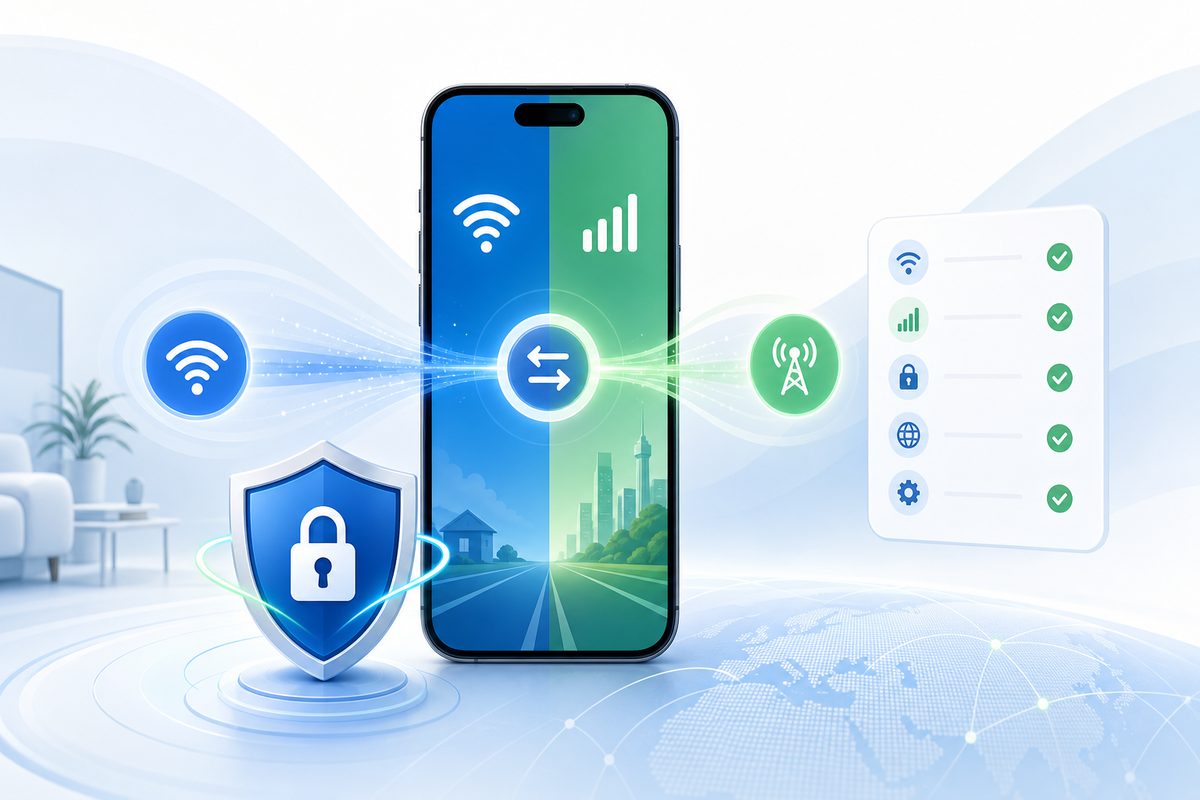
When your VPN won't work on mobile data but connects fine over home Wi‑Fi, the VPN service itself isn't always to blame. More often, one of the layers breaks: the cellular network, APN, DNS, Always‑on mode, an iPhone profile, battery saver, or a specific route to the server. Below is a safe diagnostic checklist for Android and iPhone — no shady tricks and no promises that a single toggle will lift every restriction.
Why the problem shows up specifically on LTE/5G
From an app's point of view, Wi‑Fi and a mobile network look the same: "the internet is on." In practice, they are different routes. Your home ISP has one DNS and its own filtering; your mobile carrier has a different NAT, different restrictions, and different connection stability as you move between cells. That's why the typical scenario looks like this: the VPN connected at a café, it works at home, but on the road over LTE it hangs on connecting or shows the icon while websites refuse to load.
In 2026, two more factors come into play. First, apps increasingly rely on persistent background connections: messengers, mail, banking push codes. Second, phones are more aggressive about saving power and may "put to sleep" a VPN client that's been running in the background for a long time. Google's Android help separately describes Always‑on VPN: if a permanent VPN connection drops, the system shows a notification until the link is restored. In iPhone settings, Apple separates Wi‑Fi, cellular, VPN profiles, and iCloud Private Relay; this matters because Private Relay mainly protects Safari traffic and isn't available everywhere.
A quick 3-minute test
Don't start by reinstalling the app — start by isolating the cause.
- Turn off Wi‑Fi and leave only LTE/5G.
- Open a regular site without the VPN. If it doesn't load, fix the mobile internet issue first.
- Turn on the VPN and check two addresses: a regular site and the service you actually enabled the VPN for.
- Switch the server inside the VPN app if that option exists.
- Toggle airplane mode for 10–15 seconds and bring the network back.
- Restart the VPN app, but don't delete the profile until you've checked the settings below.
If changing the server fixed everything, the problem was probably the route or an overloaded entry point. If no server works at all on mobile data, move on to system settings.
Symptom and first-step table
| Symptom | Most likely cause | What to check first |
|---|---|---|
| VPN connects on Wi‑Fi but not on LTE/5G | Cellular network, APN, carrier route | Radio restart via airplane mode, another server, APN |
| VPN icon is on but sites won't open | DNS conflict or broken route | Private DNS, DNS inside the VPN, change protocol |
| Android shows a persistent Always‑on VPN notification | Always‑on VPN can't reconnect | Settings → VPN → Always‑on and "block without VPN" |
| On iPhone, some sites open and some don't | VPN profile, Private Relay, cellular line settings | VPN profiles, Limit IP Address Tracking, Private Relay |
| Telegram/mail/banking are silent but the browser works | Background connections and push channels | Background data, battery, Focus mode, network |
| VPN drops while moving | Cell handover, weak signal, power saving | Signal level, 4G instead of 5G Auto, exclude from battery saver |
Android: what to check, in order
1. Always‑on VPN and block-without-VPN
On Android, open Settings → Network & internet → VPN. The path may differ on Samsung, Xiaomi, Honor, and other vendors, so it's easier to search for "VPN" in Settings. Tap the gear icon next to the relevant profile and check two options:
- Always‑on VPN — the phone tries to keep the connection up at all times.
- Block connections without VPN — the internet may not work at all if the tunnel hasn't come up.
You don't have to disable these features permanently. For diagnostics, it's enough to temporarily figure out what exactly is blocking the link. If turning off "block without VPN" brings mobile data back, the problem isn't your browser — it's that the VPN can't bring up the tunnel on the carrier's network in time.
2. Private DNS: a useful feature that sometimes conflicts
Android's Private DNS encrypts DNS queries via DoT, while some apps or VPN clients additionally override DNS inside the tunnel. If both layers try to manage DNS, the result can look strange: the VPN is connected, the IP has changed, but domains won't resolve. Cloudflare's DNS over HTTPS documentation explains the general principle: encrypted DNS hides inside HTTPS traffic on port 443. That's useful for privacy, but for diagnostics it's important not to stack several DNS mechanisms at once.
Check Settings → Network & internet → Private DNS. For testing, set it to "Automatic" or "Off," then turn on the VPN and reload the site. If the problem goes away, configure DNS inside the VPN app or leave the system Private DNS without a custom host.
3. Battery saver and background data
If the VPN connects but stops working after a few minutes on mobile data, check battery restrictions. On Android, open the VPN app card: Battery → Unrestricted or an equivalent mode. Then check Mobile data → Allow background data. This is especially important for messengers and mail: push notifications use persistent background channels, not the same flow as an open browser tab.
iPhone: what to check without deleting everything
1. VPN profiles and Connect On Demand
On iPhone, open Settings → General → VPN & Device Management. If several VPN profiles are installed, keep only the one you actually use active. Some profiles may enable "Connect On Demand" — automatic connection under certain conditions. It's convenient, but with conflicting profiles the phone may keep toggling the VPN on and off.
2. Cellular line, Private Relay, and IP tracking
Apple describes iCloud Private Relay as an iCloud+ feature that encrypts Safari traffic and sends it through two relays; it isn't available in every country and is enabled separately on each device. For VPN troubleshooting, don't confuse it with a full VPN that covers every app. Check Settings → [your name] → iCloud → Private Relay and the Limit IP Address Tracking option for cellular. If the issue is only in Safari while other apps behave differently, the cause may not be the VPN but the overlap of these privacy features.
3. Switching 5G Auto / LTE
If the VPN drops while you're moving, try temporarily selecting LTE instead of 5G Auto. This isn't a "speed booster" — it's a stability test: some failures appear specifically during frequent network-mode switching. If the tunnel is more stable on LTE, keep that mode while traveling or pick a server closer to your region.
APN and carrier restrictions: when to dig into settings
APN is your mobile carrier's access point. Normally the phone gets it automatically and you don't need to change anything by hand. But if the SIM is old, settings were carried over from another device, or a corporate profile was used, the APN may be incorrect. Symptoms: regular sites open but the VPN won't connect; or the internet works only in certain apps.
The safe approach is this: compare your APN settings with your carrier's official instructions, don't download "universal APNs" from forums, don't enter someone else's proxy, and don't change MCC/MNC at random. If in doubt, it's easier to reset network settings and let the carrier provision the APN again. On iPhone this is usually done via a network settings reset; on Android, through the SIM/mobile network menu.
Checklist: safe diagnostics without risk
- You've verified internet works without VPN specifically on mobile data.
- You've tried 2–3 VPN servers, not just one overloaded one.
- On Android, you've separately checked Always‑on VPN and "block without VPN."
- Private DNS is temporarily set to "Automatic" for testing.
- The VPN app is allowed background data and exempted from aggressive battery saving.
- On iPhone, you've checked VPN profiles, Private Relay, and cellular line settings.
- APN is verified only against your carrier's official settings.
- If only one app fails, you've checked that app's own rules and split tunneling.
When split tunneling helps
If mobile data works, the VPN works, but specific apps break, you don't have to push the whole device through the tunnel. Split tunneling lets you send only the apps you need through the VPN — or, conversely, exclude sensitive services: banking, government portals, corporate clients. This approach is covered in detail in "VPN split tunneling in 2026".
On Android, this is usually implemented right inside the VPN app. On iPhone, the options depend on the app and profile: the system manages VPN routes more strictly, so "the same as on A
Use the smallest safe checklist
Open Foli, refresh the subscription and test one network and one route before changing everything.