
VPN on PS5: How to Connect PlayStation 5 via Router, PC, or Hotspot in 2026
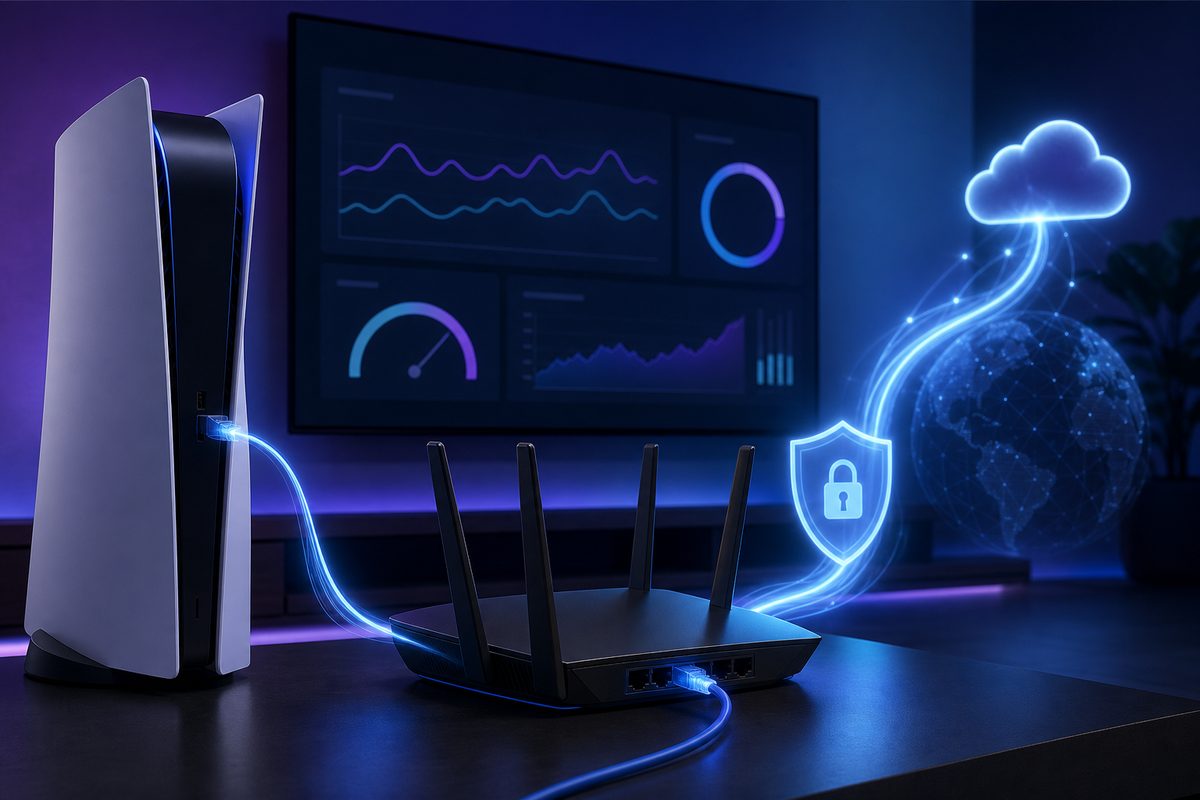
A VPN on PS5 isn't something everyone needs, but in 2026 the request has become practical: the console is used not only for gaming, but also for YouTube, Discord, streaming, remote play, and home media scenarios. The main difficulty is that PlayStation 5 doesn't install a regular VPN client directly, so the connection has to be built through a router, a computer, or a separate access point.
Below is a safe order for choosing a scheme — without "magic" settings and without risky advice. If you need a VPN for everyday devices, start with FoliVPN, and for in-game latency keep the guide VPN for games with high ping and the article on VPN on an ASUS router close at hand.
What you need to understand before setup
PS5 can connect to the internet via Wi‑Fi or LAN cable and lets you change advanced network settings. PlayStation's official help describes the basic connection options, and in the NW-102417-5 error section Sony recommends that on timeouts you check PSN status, restart the console and router, use a wired connection if possible, update router firmware, check ports, and temporarily change DNS.
But this doesn't mean the PS5 has an "enter VPN" field. The console sees a regular network. If that network already routes traffic through a VPN, the PS5 will also go through the VPN. If the network is regular, the PS5 will work directly.
This gives three realistic scenarios:
- VPN on the router — the best option for home, Smart TV, and console.
- Sharing the internet from a computer — a temporary option for testing.
- Travel router or mobile hotspot — useful on the road, but unstable for gaming.
When a VPN on PS5 actually makes sense
A VPN is not a game accelerator by default. It can help if your ISP's route to a specific server is poor, if the network throttles certain types of traffic, or if you want centralized control over home devices. But it can also make ping worse, because it adds an intermediate node.
Reasonable reasons to try a VPN on PS5:
- YouTube or media apps on the console behave inconsistently, while on other devices they are more stable through VPN;
- the home router already uses split routing and you need to add the console to it;
- the ISP's route to the game server has packet loss, and there is a hypothesis that another route would be better;
- the console sits on a hotel, dorm, or temporary-housing network where some services behave strangely;
- you need to protect the entire home network's traffic at the router level.
Bad reasons: "a VPN always lowers ping," "this will definitely make NAT Type 3 disappear," "any DNS turns the PS5 into a VPN." These statements are too general. NAT, DNS, UDP, routes, and game servers all work differently.
Table: which connection method to choose
| Scenario | When it fits | Pros | Cons |
|---|---|---|---|
| VPN on the router | Home, Smart TV, PS5, multiple devices | Stable, no PC needed, can connect by LAN | Requires a compatible router and careful setup |
| VPN Fusion / policy routing | You need to route only the PS5 or only the TV through VPN | Less chaos; banks and games can stay direct | Not supported on every model |
| Sharing VPN from a PC | Quick test without buying a router | You can try the idea in one evening | The PC has to stay on; possible NAT issues |
| Travel router | Travel, hotel, temporary apartment | Separate managed network for the console | Needs power and pre-configuration |
| Mobile hotspot | Backup option | Quick to enable | Often strict NAT, unstable ping, and carrier limits |
Method 1. VPN on the router: the cleanest option for PS5
If you want a permanent setup, start with the router. In its VPN help, ASUS highlights the main advantage of the router-based approach: VPN coverage extends to devices that have no VPN client of their own, including game consoles and Smart TVs. Modern routers offer VPN Client, WireGuard, OpenVPN, VPN Fusion, and the ability to assign VPN only to specific devices.
A safe plan looks like this:
- Make sure your router supports a VPN client, not just a VPN server.
- Configure the VPN according to the instructions from your service or router manufacturer.
- Connect the PS5 to the router by LAN cable if possible.
- If the router supports per-device rules, route only the PS5 or only the media apps/network segment through the VPN.
- Test regular internet, PSN sign-in, YouTube, Discord, and one online game.
- Compare ping and packet loss with and without the VPN.
WireGuard is often chosen for routers because of its simplicity and performance, but it requires correct keys, peer settings, an endpoint, and routes. The official WireGuard quick start specifically emphasizes working with interfaces, keys, peers, routing, and persistent keepalive for NAT/firewall scenarios. For an ordinary user the takeaway is simple: don't reuse random configs from chats, use a profile from your VPN service, and verify each change separately.
What to do about NAT Type
NAT Type on PlayStation indicates how freely the console can accept and establish game connections. Strict NAT often hurts voice chat, matchmaking, and connections with friends. A VPN by itself does not guarantee better NAT. Sometimes it actually makes things worse, because it adds another routing layer.
If the PS5 shows NAT Type 3:
- check first without VPN;
- use LAN instead of Wi‑Fi;
- restart the router and modem;
- update router firmware;
- check UPnP or careful port forwarding per the manufacturer's instructions;
- don't open ports at random and don't fully disable the firewall;
- if VPN is enabled on the whole router, temporarily exclude the PS5 and compare the result.
In the NW-102417-5 help, PlayStation lists ports TCP 80, 443, 3478, 3479, 3480 and UDP 3478, 3479, 49152–65535 as a possible check for network timeouts, but explicitly advises contacting your ISP or a router-configuration specialist. This is not an instruction to "open everything to everyone," but a reason to act carefully.
Method 2. Share VPN from a computer to the PS5
This option suits you if you're not ready to change the router. The idea is simple: the VPN is enabled on the computer, and the PS5 connects to the network the computer shares via Ethernet or Wi‑Fi. In practice it all depends on the OS, network drivers, and sharing rules.
When the method is appropriate:
- you need to quickly check whether VPN helps a specific app on the PS5;
- the PS5 is next to the PC and you can run a cable;
- the router doesn't support a VPN client;
- you're willing to deal with internet sharing.
The downsides are also honest: the PC must stay on, settings can break after updates, and NAT and ping sometimes get worse. So don't make this scheme permanent if you play online every day. For permanent use, a router or travel router is better.
Method 3. Travel router and mobile hotspot
A travel router is a small router that connects to hotel Wi‑Fi, Ethernet, or a mobile modem and creates your own separate network. For the PS5 it looks like normal Wi‑Fi, while the VPN lives on the router itself. On trips this is more convenient than changing console settings every time.
A mobile hotspot is simpler but less predictable. Android and iPhone can connect to a VPN on the phone, but they don't always pass VPN traffic to other devices. In addition, mobile carriers often use CG‑NAT, which can make PlayStation show strict NAT. For PS Portal, remote play, and voice chat that's critical.
If you specifically need the "share VPN from a phone" scenario, it's better to start with a dedicated breakdown: how to share VPN from a phone. It covers more nuances about hotspot, Android, iPhone, and proxy workarounds without dangerous settings.
DNS on PS5: when to change it and when to leave it alone
DNS is responsible for translating domain names into IP addresses. It can affect whether an app or store opens, but it does not encrypt traffic and it is not a VPN. So "changing DNS" is a diagnostic step, not a full VPN setup.
It makes sense to change DNS on PS5 if:
- the console connects to the network but some services don't open;
- PlayStation shows a network timeout;
- the problem looks like a domain-resolution error;
- your VPN router requires DNS through the tunnel.
Don't change DNS if the main symptom is high ping in a specific game. For ping, what matters more is the route to the game server, Wi‑Fi/LAN, channel load, UDP, and packet loss. DNS helps at the start of a connection, but it doesn't turn a bad route into a good one.
Pre-game checklist
- PS5 is connected by LAN or sits close to the router.
- Internet without VPN works reliably.
- VPN is enabled only where it's needed, not across the whole network "just in case."
- PSN, YouTube/Discord, and one online game have been tested.
- Ping, packet loss, and NAT have been compared with and without VPN.
- Router firmware is up to date.
- DNS has been changed
Use the smallest safe checklist
Open Foli, refresh the subscription and test one network and one route before changing everything.