
Banking App Not Working with VPN: 2026 Troubleshooting Checklist
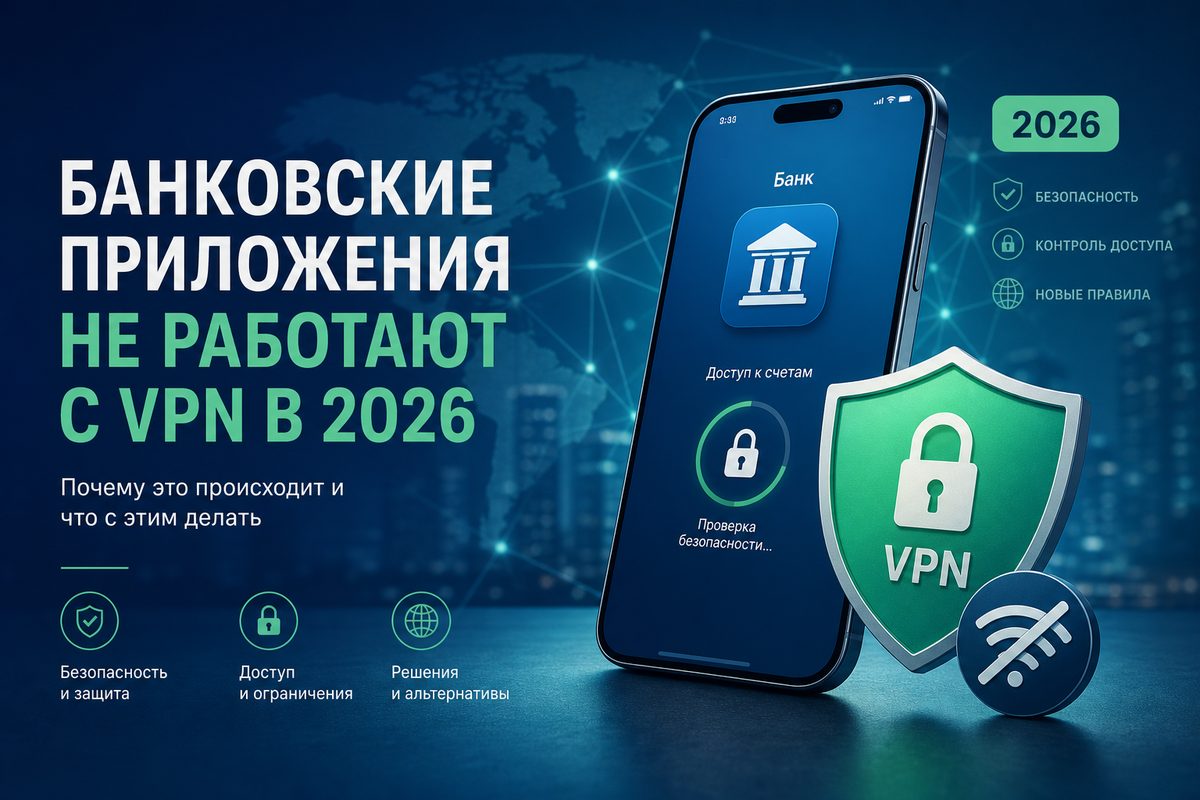
If your banking app stops working with a VPN, the VPN service itself isn't always to blame. In 2026, mobile banks increasingly evaluate the network, IP region, device state, DNS, system profiles and "suspicious" network chains. Below is a safe checklist: how to figure out what's actually breaking without disabling protection at random or risking access to your account.
This guide is aimed at a regular iPhone or Android user: no bypassing of bank rules, no advice on identity spoofing, and no shady schemes. The goal is to restore stable access to your app while keeping good network hygiene.
Why banking apps are especially sensitive to VPNs
A bank sees more than just your login and password. The app usually also factors in the device, OS version, network, login region, frequency of IP changes, presence of a proxy/VPN, certificate status and sometimes signs of system modification. This doesn't mean a VPN is "always banned." But for a financial app, a sudden change in network context can look like a risk: yesterday you logged in from your home carrier, today from a datacenter address in another country, and a minute later from yet another region.
Hence the typical symptoms:
- the app opens but the main screen loads forever;
- login goes through but transactions fail;
- you get "network error," "check your connection" or "service temporarily unavailable" messages;
- push codes or SMS arrive with a delay;
- the app works over Wi‑Fi without VPN but fails over mobile data with VPN;
- the bank's website opens, but the mobile app doesn't.
A key clue: if the problem only repeats with one bank, don't rush to reinstall all your VPN profiles. First, separate the bank's security policy from a system-wide network error.
What official sources say and why it matters
Android's help docs describe the standard VPN logic: a user can add a VPN, enable always-on VPN, and turn on the option to block connections without VPN. This mode is useful for privacy, but if the profile is unstable, it can cut off all traffic to the app. This is especially noticeable with banks, where timeouts are short and repeated server requests can look like a broken session.
Apple's iPhone documentation separately describes configuration profiles: they can define network and corporate parameters. If old VPN, MDM, DNS or filtering profiles have accumulated on the phone, the banking app may route through the network differently than the user expects. Apple also notes that some sites, networks and services may need to see the IP address or perform network filtering; this is important when using a VPN together with privacy features like iCloud Private Relay.
The FTC's guide on public Wi‑Fi reminds us: on open networks, you should be careful about transmitting personal data and check for a secure connection. The practical takeaway for banking is simple: a VPN can be useful in a café, airport or hotel, but it doesn't replace the official app, an updated OS, two-factor protection and vigilance against phishing.
Quick 5-minute diagnostics
Don't start by reinstalling the bank app. Run a short series of checks — it often reveals the cause without unnecessary risk.
| Check | What to do | What the result means |
|---|---|---|
| 1. No VPN on the same network | Turn off VPN for 1–2 minutes and open the bank | If everything works, the issue is in routing, IP, DNS or the bank's VPN policy |
| 2. With VPN but a different server | Pick the nearest stable region, nothing exotic | If it works, the old IP/region may have been flagged as risky |
| 3. Wi‑Fi vs LTE/5G | Run the same operation on both networks | A difference points to carrier, APN, IPv6 or captive portal |
| 4. Bank only, outside the VPN | If split tunneling is available, exclude the banking app | If the problem disappears, the bank doesn't suit a VPN route, while the rest of your protection stays |
| 5. DNS and Private Relay | Temporarily disable Private DNS/Private Relay for a test | If the bank comes back to life, the conflict was in the DNS/privacy chain |
After each step, return the settings to normal if the test didn't help. And don't enter your password on pages opened from ads, search results or a messenger: only use the official app and the bank's official site.
Safe-resolution checklist
- Update the banking app from the official store or through the official method the bank itself recommends.
- Update iOS/Android: banks often drop support for old OS versions and WebView components.
- Check the date and time: a wrong time zone breaks sessions and certificates.
- Switch the VPN to the nearest region and a stable protocol; don't change servers every few minutes.
- Disable dubious "accelerators," unknown DNS profiles and old VPN configurations.
- If split tunneling is available, route the bank directly while keeping Telegram, your browser or work services through the VPN.
- Don't use the banking app over passwordless public Wi‑Fi if you're unsure about the network; mobile data or a trusted home network is better.
- If the bank explicitly states that VPN logins are restricted, don't try to bypass this with technical tricks — contact the bank's support.
iPhone: what to check in iOS
1. VPN profiles and configurations
Open your iPhone settings and check which VPN profiles are installed. Old profiles from past services, corporate configurations, content filters and DNS profiles can conflict with each other. If a profile hasn't been used for a long time and you know where it came from, it's better to remove it. If the profile is for work or school, check with the administrator first.
A detailed breakdown of similar network symptoms is in our article VPN on iPhone Not Working: What to Check in iOS in 2026.
2. iCloud Private Relay and IP privacy
Private Relay isn't a classic VPN, but it also changes the network picture for sites and services. If VPN, Private Relay and extra DNS settings are all enabled at once, the bank may get an ambiguous network context. To diagnose, temporarily test a login without Private Relay or with VPN only. Don't draw conclusions from a single launch: close the banking app from the task switcher and open it again.
3. Local network and notifications
Some banking apps rely on push notifications, confirmations and background network requests. If low power mode is on, background data is limited, or notifications are disabled, it can look like the VPN is at fault, when in reality the confirmation code is simply delayed. Check notifications, background refresh and the permission to use mobile data.
Android: common causes and settings
1. Always-on VPN and "Block connections without VPN"
On Android, an always-on VPN and blocking traffic without VPN are useful when you want to prevent accidental leaks. But when the tunnel drops, the banking app can end up with no access at all. To test, see whether the bank works if you temporarily disable "Block connections without VPN." If it does, the issue isn't with the bank as such but with the stability of the profile or route.
If a similar issue only appears over LTE/5G, see the separate guide: VPN Not Working over Mobile Internet.
2. Private DNS
Private DNS on Android can conflict with a VPN, especially if the VPN already sets its own DNS servers. Symptoms: the banking app loads a screen but gets no data; a site opens in one browser but not in another; pushes arrive with a delay. To test, temporarily set Private DNS back to automatic and restart the app.
3. Data saver and battery optimization
A banking app needs stable background requests for confirmations and session refresh. If Android limits background data while the VPN simultaneously changes the route, the error shows up more often. Check the exceptions for the bank and the VPN client in battery settings, but don't turn off the device's system protection entirely.
When split tunneling helps
Split tunneling is a mode where some apps go through the VPN while others connect directly. For banks, this is often the cleanest option: the financial app uses your usual carrier network or home Wi‑Fi, while other services keep working through the secure tunnel.
But don't turn split tunneling into chaos. Don't exclude everything from the VPN. Start with one banking app, test login, transactions and notifications, then record the result. If the issue was the bank's anti-fraud policy toward VPN addresses, excluding the bank can solve it without disabling protection for your browser, Telegram or work tools. More on how this mode works in the article Split Tunneling VPN: How to Enable VPN Only for the Apps You Need.
Public Wi‑Fi: when you need a VPN and when mobile data is better
In a café, hotel or air
Use the smallest safe checklist
Open Foli, refresh the subscription and test one network and one route before changing everything.