
How to Share VPN from Your Phone: What Actually Works in 2026
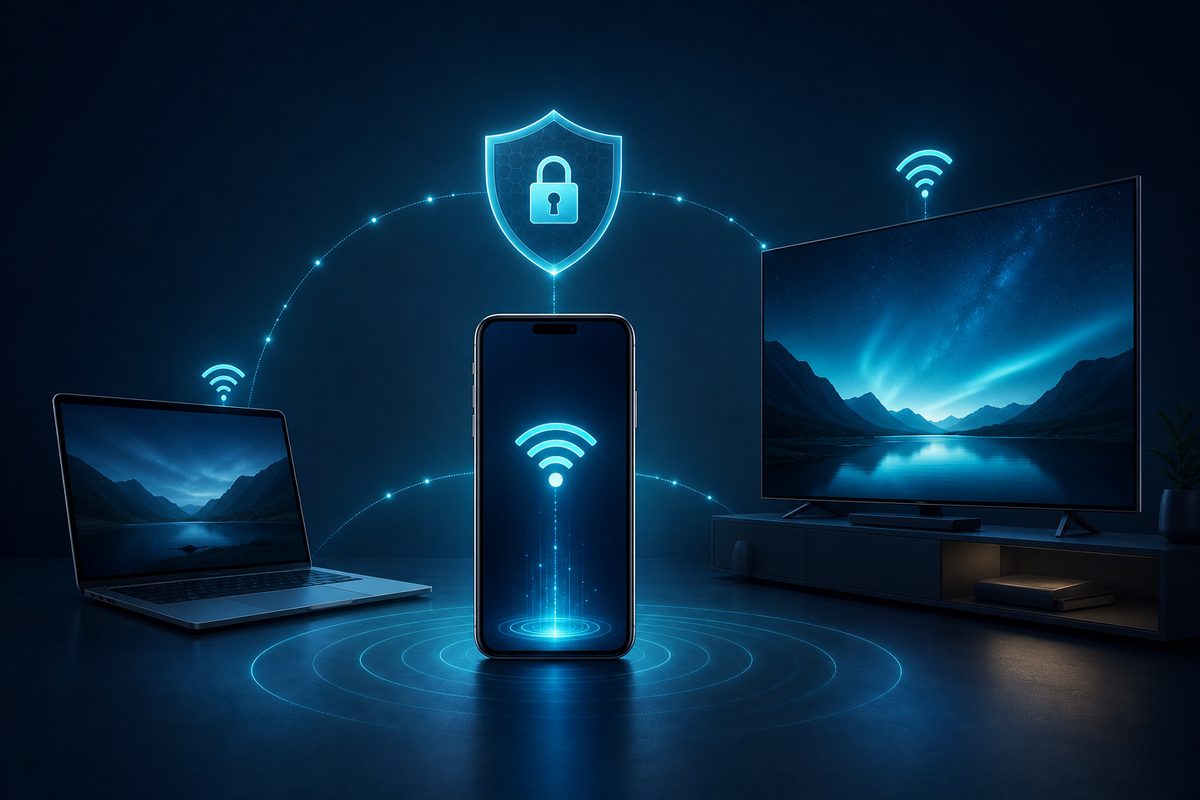
Sharing a VPN from your phone sounds like an easy fix: turn on the VPN, turn on the hotspot, and your laptop, TV, or tablet is also "behind the VPN." In practice, Android and iPhone usually don't work that way: the hotspot shares your internet connection, but it doesn't always share the VPN tunnel. Below is an honest breakdown of which options are safe, where OS limitations begin, and what to choose for a laptop, Smart TV, set-top box, or home network.
This guide is written for regular users: no root, no shady phone modifications, and no advice that breaks carrier rules or the law. If you need a stable VPN connection across multiple devices, start with the official FoliVPN landing page and pick the connection method that suits your hardware.
Short answer: can you share a VPN from your phone?
In most everyday scenarios — no, not directly. If the VPN is on your phone, the phone's apps go through the VPN. But a device connected to the mobile hotspot often gets plain mobile carrier internet, not traffic inside the VPN tunnel.
This matters in 2026 for two reasons. First, people increasingly try to connect a laptop, Smart TV, game console, or tablet through their phone when the home network is unstable. Second, because of DNS/DPI filtering, restrictions on specific services, and regional network outages, the simple "phone as a router" scheme can behave unexpectedly: a site opens on the phone, but not on a laptop using its hotspot.
Sensible options are:
- install a VPN client on every device where possible;
- use a router or travel-router with a VPN client;
- on Android, use a local HTTP/SOCKS proxy for individual devices and apps, if you understand the limitations;
- don't use root or system hacks as a default solution: the security risk outweighs the benefit.
Why the hotspot doesn't inherit the VPN tunnel
In hotspot mode, your phone works like a small router: it accepts Wi‑Fi connections from other devices and routes them out through the mobile network. The VPN app, meanwhile, usually serves the phone's own network stack and its apps. Traffic from a connected laptop or TV may take a different route.
Proton VPN openly states that Android in its default mode doesn't allow sharing a VPN connection over a hotspot without root or advanced system changes. In their guidance, root is called an option for technically experienced users, but undesirable for most people because of risks to security, warranty, stability, and the behavior of banking apps.
iPhone follows the same logic. In an Apple Community discussion, a user is told that the iPhone shares mobile internet with a laptop, but doesn't share its VPN connection; the laptop needs its own VPN client. This isn't a new 2026 quirk, but it has become more noticeable now because people use their phone as a backup connection for multiple devices more often.
How to tell if your laptop or TV isn't actually going through the phone's VPN
The check should be simple and safe. There's no need to install a dozen unknown apps. Just compare the behavior of the phone and the device behind the hotspot.
- On the phone, enable the VPN and open a regular IP-check site.
- Connect your laptop or tablet to the phone's hotspot.
- On the connected device, open the same IP-check site.
- Compare the country, provider, and IP address.
- Check more than one site — two or three — since geo databases sometimes get it wrong.
If the phone shows one region and the laptop shows the mobile carrier or a different region, the hotspot isn't using the phone's VPN. Even if the IP matches, still test apps: the browser may work through a proxy, while system apps, games, or Smart TV apps don't.
Table: which method to choose
| Scenario | Best approach | Pros | Limitations |
|---|---|---|---|
| Windows or macOS laptop connected to the phone | Install a VPN client on the laptop itself | The clearest and most stable option | You need to install an app or profile |
| Android tablet or a second phone | Put a VPN on that device | All apps on the device work | You need access to the app/profile |
| iPad via iPhone Personal Hotspot | Run VPN on the iPad, not the iPhone | Transparent diagnostics | iPhone usually doesn't share its VPN |
| Smart TV or set-top box without a VPN app | VPN on the router or travel-router | Works for the whole Wi‑Fi network | Router configuration required |
| Temporary access from an Android hotspot | Local HTTP/SOCKS proxy | Can help for browser and some apps | Not all traffic can use a proxy |
| Home network with multiple devices | Router with WireGuard/OpenVPN | Less chaos on phones | Router speed and correct DNS matter |
Option 1. A VPN on each device — the most reliable path
If a device supports a VPN app or profile, it's almost always better to connect it directly. Laptops, Android TV, iPad, a second phone, and many set-top boxes can run their own client. Then it doesn't matter what internet they use: home Wi‑Fi, mobile hotspot, hotel, or café.
Upsides of a direct connection:
- it's easier to tell where the issue is: app, DNS, network, or server;
- you don't need to keep the phone constantly unlocked and on charge;
- less risk that Android kills a background app;
- you can enable different modes for different devices;
- no need to modify the phone's system.
For Android, Google describes the standard path: a VPN is added in Settings → "Network & internet → VPN," and some options are available only on newer Android versions. Important: if menu items look different, that's normal — manufacturers change the UI. In that case, search for "VPN" in your device settings rather than copying someone else's screenshot-based guide.
If you need a dedicated TV scenario, see the companion article: VPN on Smart TV: How to Connect a TV, Android TV, and Set-Top Box in 2026.
Option 2. A router or travel-router instead of a phone
If the goal is to give VPN to several devices at once, a phone is often a poor "central hub." It heats up, drains, switches power-saving modes, loses mobile signal, and may simply not route VPN traffic for the hotspot. A router with a VPN client is more predictable.
A home router is suitable when VPN is needed all the time: for the TV, laptop, tablet, and set-top box. A travel-router is handy on trips: it connects to hotel Wi‑Fi or mobile internet and creates your own separate network where VPN is configured just once. GL.iNet documentation shows the typical WireGuard topology: one router can be the server, another the client; for a home server, a public IP, DDNS, or an alternative access method matters.
You don't have to start with advanced setups. For most users, a router that can import a VPN client configuration and choose which devices go through the tunnel is enough. If you already use Keenetic, see the breakdown VPN on a Keenetic router in 2026. If your network runs on MikroTik, see VPN on MikroTik in 2026.
Option 3. Android + local proxy: when it makes sense
Android has a middle-ground option: run a local HTTP/SOCKS proxy on the phone and point your laptop or tablet (connected to the hotspot) to that proxy. Every Proxy describes this scheme: the second device connects to the hotspot, then in its proxy settings you enter the IP and port shown by the Android app.
This is not the same as a full VPN share at the router level. A proxy only helps apps that can use a system or manual proxy. Browsers usually can. Some messengers, games, Smart TV apps, and system updates cannot. So treat this method as a temporary fix for the browser on your laptop, not as a universal home network.
Safe rules:
- install only well-known apps from a trusted source;
- don't expose the proxy to outside networks;
- enable a password on the hotspot;
- don't use the scheme to bypass your carrier's plan limits;
- turn the proxy off after use;
- add the app to battery-saver exceptions, otherwise Android may kill it in the background.
What you shouldn't do
First — don't root your phone just to share VPN. Root gives full control over the system, but it brings risks: bricking the device, vulnerabilities, update issues, and banking apps refusing to run. For the simple task of "connect a laptop or TV," the price is too high.
Second — don't trust guides that promise "one button for all blocks" and ask you to install an unknown profile, certificate, or APK. In 2026, there's a lot of aggressive marketing around VPNs: some tips only work on a specific phone model
Use the smallest safe checklist
Open Foli, refresh the subscription and test one network and one route before changing everything.