
Gaming VPN and High Ping: Does It Actually Help or Add Lag in 2026?
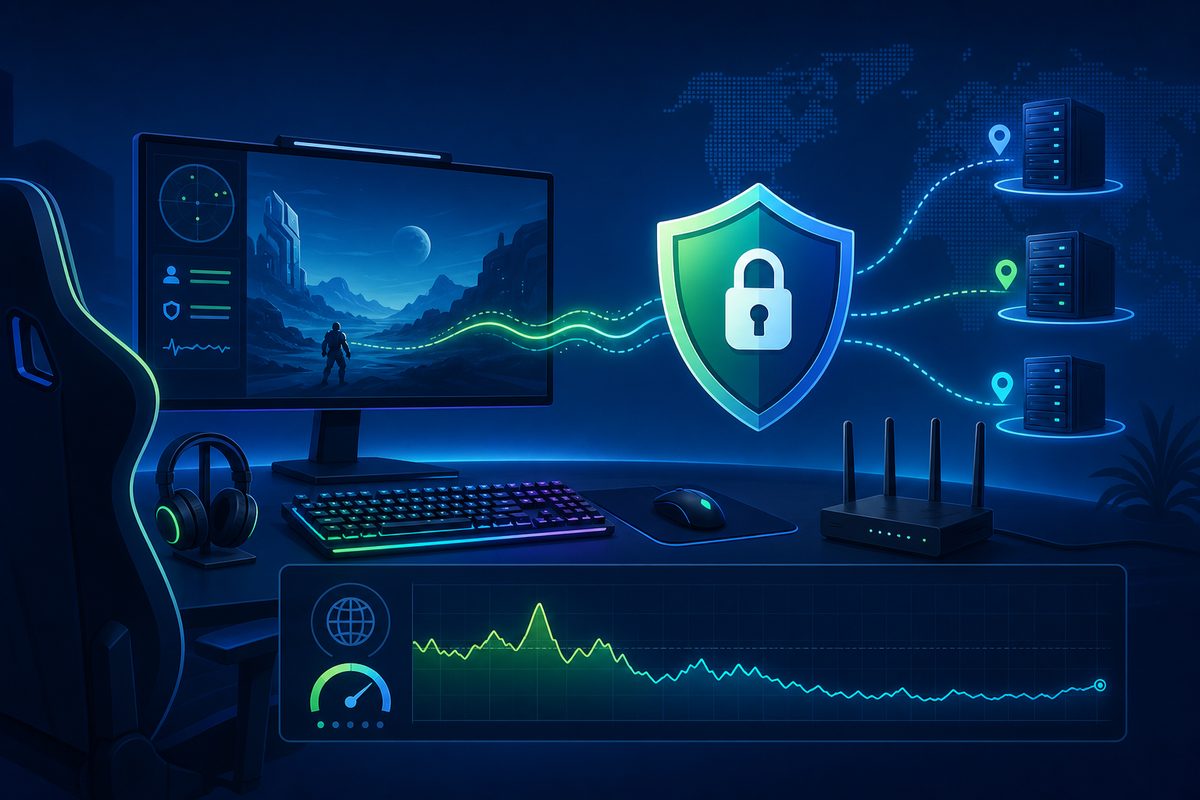
If your game is "rubber-banding," voice chat stutters, and ping spikes even on a decent plan, the VPN is not always to blame. In 2026, Russian users are dealing with several overlapping issues at once: ISP routing, congested Wi‑Fi, restrictions on specific services, DNS conflicts, routers stuck behind double NAT, and poorly chosen VPN locations. Below is a practical way to tell when a gaming VPN actually reduces high ping — and when it is better to turn it off or apply it only to specific apps.
Important: this article is not about bypassing game rules, regional store restrictions, or bans. It is about diagnosing connection quality, staying safe on public networks, and getting stable performance from legally available online services.
What to actually measure: ping, jitter and packet loss
Many people look only at "speed" in megabits, but for gaming three other metrics matter more:
| Metric | What it means | How it shows in‑game | What to check first |
|---|---|---|---|
| Ping / latency | Round‑trip delay to the server | Late shots, jerky movement, button lag | Game server region and VPN route |
| Jitter | Variation in latency between packets | Fine, then sudden lag without FPS drop | Wi‑Fi, channel congestion, background downloads |
| Packet loss | Some packets never arrive | Rubber‑banding, teleports, match drops, voice issues | Cable/router, Wi‑Fi quality, ISP, VPN server |
| NAT | How your console or PC is reachable | Lobbies fail, voice broken, strict multiplayer | Router, double NAT, UPnP/port rules |
In its materials on internet quality, Cloudflare stresses that download speed alone is a poor predictor of experience in games, video calls and streaming. A connection has bandwidth, latency and loss, and they are interrelated. That is why "Speedtest shows 200 Mbps, but CS2 or War Thunder lags" is a very real situation.
When a VPN can actually reduce ping
A VPN adds an intermediate hop. Normally that should slightly increase latency. But sometimes the VPN route turns out to be better than your ISP's direct route: for example, when the ISP sends traffic to a European data center via a roundabout path, overloads the international link in the evening, or handles UDP traffic unreliably.
It makes sense to test a VPN if:
- ping to the same game region differs sharply between you and friends on another ISP;
- without a VPN you have packet loss, but regular websites work fine;
- the game connects, but voice chat or matchmaking keeps dropping;
- only one route has issues: e.g. EU West lags while local sites are fast;
- home Wi‑Fi is worse than wired, but even via cable the route is unstable.
The main rule: a VPN is not an "internet booster" by default. It can improve a route, but it can also add an unnecessary hop. So the decision is made not by ads, but by before/after measurements.
When a VPN almost certainly makes gaming worse
Turn the VPN off or exclude the game from the tunnel if, after enabling it:
- average ping goes up and packet loss does not decrease;
- packet loss appears in the game that wasn't there directly;
- the VPN server is far from the game region;
- the app uses slow TCP mode where the game needs UDP;
- the router has a weak CPU and can't handle encryption at full speed;
- two layers are active at once: VPN in the app on the PC and VPN on the router;
- the console reports Strict NAT or fails the network test.
On PC, split tunneling often helps: browser, Telegram or YouTube go through the VPN while the game goes direct. There is a separate article on this scenario: VPN split tunneling in 2026. If the VPN is needed for the whole home network, see the basic guide on VPN on a router and home internet and the practical guide for MikroTik.
A quick 15‑minute test, without risky tweaks
First you need an honest baseline. Don't change DNS, MTU, protocol, router and VPN server all at once — otherwise you won't know what actually helped.
Step 1. Record the starting conditions
Write down:
- the game and server region;
- connection type: Wi‑Fi 2.4 GHz, Wi‑Fi 5/6 GHz, or Ethernet;
- ISP and device: Windows, Android, iPhone, PlayStation, Xbox;
- whether the VPN is on the device, the router, or both;
- approximate test time, since evening load often differs from daytime.
Step 2. Test the game without a VPN
Go into a practice mode, custom match, or the game's built‑in network test. Don't look at a single number — look at stability: average ping, spikes, packet loss, voice dropouts. If the game only shows a bad‑network icon, additionally run a regular speed test with latency/jitter, or a network quality test.
Step 3. Connect to a VPN near the game server
Don't auto‑pick the "closest to me" VPN server. If you play on EU servers, it is often more sensible to test a location closer to that route. For gaming, modern UDP protocols like WireGuard or similar fast app modes are usually preferable. OpenVPN TCP can be stable for websites, but for games it often adds extra latency.
Step 4. Compare three results
Do at least three runs:
- no VPN;
- VPN server close to you;
- VPN server closer to the game region.
If the VPN helped only one run out of three, that is not yet a conclusion. Look at repeatability: same map, similar time, no background downloads. Marginal 5–10 ms changes should not be counted as a win if jitter and loss got worse.
Checklist: what to check before switching VPN services
- Connect the PC or console via Ethernet at least for the test. If lag disappears, the issue is Wi‑Fi, not the VPN.
- Stop torrents, cloud sync, Steam/Epic updates, and downloads on phones.
- Reboot the router and check whether it overheats under load.
- Make sure the VPN is enabled in only one place: device or router, not both.
- Compare UDP and TCP protocols if the app offers a choice.
- Try another VPN region, but don't jump between ten locations in a row without taking notes.
- On Android, check Always‑on VPN and Private DNS: these modes can block some connections.
- On Windows, check whether the game is going through the VPN due to a system‑wide tunnel.
- On a console, check the network stats and NAT type in the PlayStation/Xbox settings.
Consoles: why PlayStation and Xbox are trickier than a PC
On PlayStation and Xbox you usually can't just install any VPN client the way you would on Windows. There are three common setups: VPN on the router, sharing a connection from a PC, or a separate travel router. Each has a trade‑off.
PlayStation's internet setup help shows Wi‑Fi and LAN options separately, and for manual network parameters it recommends choosing the simple setup or contacting your ISP/admin if you are not sure about the values. That is a good benchmark: if you don't understand why you are changing DNS, MTU or proxy, it is better to first check the cable, server region and PSN status.
Xbox Support, in search results about network settings, points out the importance of NAT type and packet loss in network statistics. Practical takeaway: if your console has "strict" NAT, multiplayer is unavailable, or packet loss is high, the VPN may not be the main culprit. Sometimes it is ISP double NAT, a router without proper UPnP, weak Wi‑Fi, or a congested channel.
For console gaming, the safest order is:
- LAN cable from the console to the router.
- Run the built‑in network test.
- Test the game without a VPN.
- Use VPN on the router only for the console or a separate profile, if the router supports policy‑based routing.
- Revert to a direct connection if NAT and packet loss get worse.
Router and VPN: where speed is lost
A router‑level VPN is convenient: TV, console and laptop don't need separate apps. But the router itself does the encryption. Older or budget models can easily hit a CPU bottleneck: websites open, but the game gets high jitter. If you already have an article or setup for your router, don't treat it like a black box: check CPU load, the protocol, and the list of devices that actually need to go through the VPN.
A separate issue is MTU/MSS. If websites load only halfway, the match freezes during connection, and voice is unstable, the cause may not be a "slow VPN" but packet fragmentation. We already covered this in the article on VPN MTU and sites that only partially load. For gaming, don't blindly set random MTU values from forums; change the parameter only if you see clear signs of that specific problem.
How to choose a FoliVPN server for gaming
If you use FoliVPN, start with practice, not with the maximum speed in a speed test:
- choose
Use the smallest safe checklist
Open Foli, refresh the subscription and test one network and one route before changing everything.