
VPN on MikroTik in 2026: Set Up Your Home Network Without Breaking DNS, Routing or Speed
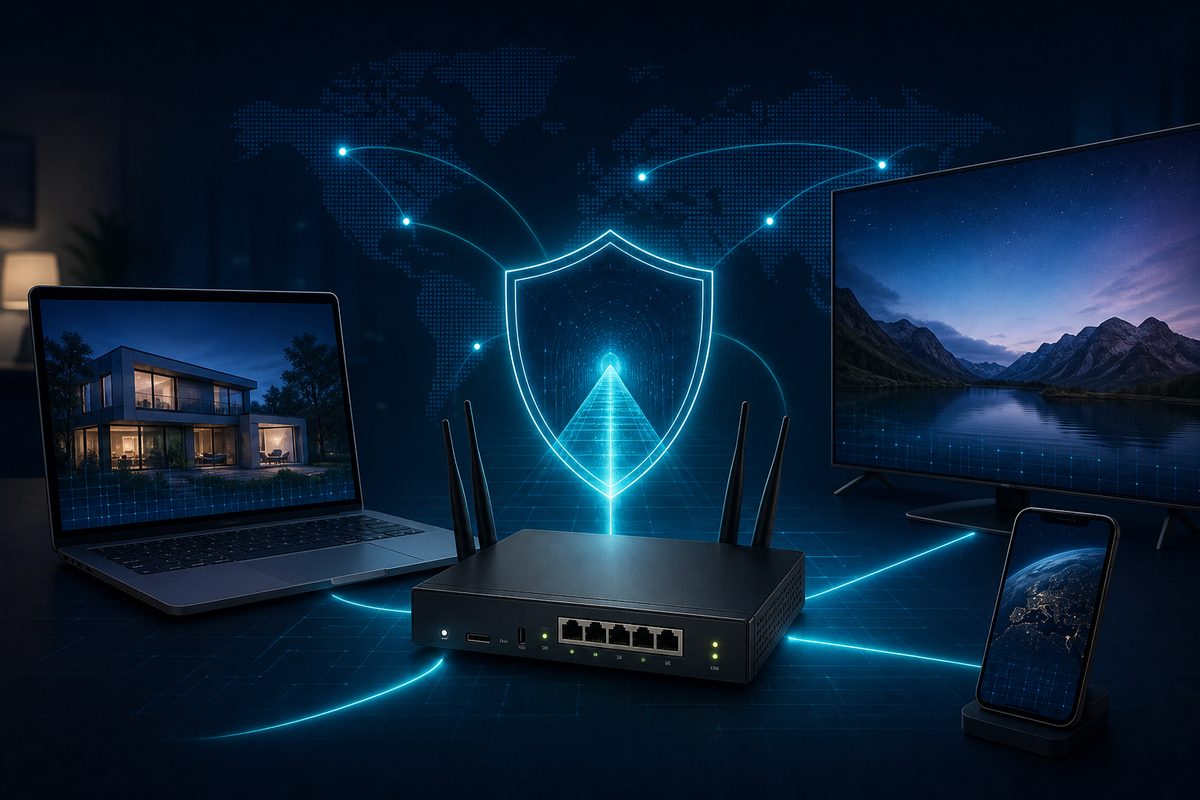
A VPN on the router is convenient when you need to protect or stabilize several devices at once: phone, laptop, TV, set-top box, work PC. But MikroTik is not a "one-button" device: if you mix up DNS, NAT, Allowed Address or MTU, the tunnel will connect, yet websites, YouTube, Telegram or Discord will still freeze. Below is a practical breakdown without risky schemes and without promises to "bypass everything" — just a legitimate setup, diagnostics and a verification routine.
Why this topic became relevant in 2026
In 2026, a Russian user more often faces not a single simple cause but a combination of factors: DNS failures, DPI filtering, mobile network instability, allowlists, overloaded VPN servers and errors on the home router side. Mediazona describes the evolution of DPI/TSPU and mobile restrictions as a multi-layer filtering system. TechRadar separately notes the role of DNS and DPI in restricting access to Telegram, WhatsApp and YouTube. That doesn't mean any VPN is guaranteed to always work; on the contrary, configuring it on a router requires careful diagnostics.
MikroTik is interesting here because RouterOS 7 supports WireGuard, table-based routing, NAT, firewall and DNS on a single device. According to MikroTik documentation, WireGuard uses an interface with a default MTU of 1420, and peers with allowed-address, endpoint and keepalive. These fields look simple, but errors often hide right inside them.
When to put a VPN on a router and when to avoid it
A VPN on MikroTik makes sense if:
- you need to connect a Smart TV, set-top box or another device without a proper VPN app;
- you want to manage rules in one place rather than on every phone;
- there is a separate group of devices that all need the same VPN route;
- you understand which sites should go through the VPN and which directly.
Don't start with the router if the VPN doesn't even work in the app on a phone or laptop. First check the subscription, server, login, protocol and basic speed. If the problem only appears after moving everything to MikroTik, then look at NAT, routes, DNS and MTU.
For a regular VPN subscription setup on client apps, it's helpful to start with the adjacent guide: how to configure a VPN subscription in v2RayTun and Happ. And if you need a VPN for your entire home network, also see the general piece VPN for router and home internet.
A short map: what must align
| Configuration node | What to check | Typical error symptom |
|---|---|---|
| RouterOS | Version 7.x and WireGuard support | Required menu items are missing |
| WireGuard interface | Private key, listen port, MTU | Interface exists, but handshake doesn't update |
| Peer | Public key, endpoint, allowed-address, keepalive | Tunnel is "silent" or works only until reboot |
| IP address | Address on WG interface from the correct subnet | Pings inside the tunnel don't go through |
| NAT/masquerade | Rule for traffic from LAN to WG | DNS works, sites don't load |
| Routes/rules | Who goes through VPN, who goes directly | The whole house lost internet or VPN isn't used |
| DNS | Resolver for clients and for the router itself | Works by IP, not by domain |
| MTU/MSS | 1420 as a start, MSS clamp when sites hang | Pings work, browser stalls on some sites |
Basic logic for setting up WireGuard on MikroTik
Below is not a universal "copy-paste" config, but a safe action map. Take exact values from your legitimate VPN subscription or your own server.
1. Update RouterOS and make a backup
Before changes, save a config export and a backup via WinBox/WebFig. This is especially important if the router already serves a home, office, cameras, NAS or a guest Wi‑Fi network. Update RouterOS 7 through the official MikroTik channel, not from random archives.
2. Create a WireGuard interface
MikroTik's WireGuard interface has a private key and a public key. The private key is not published and not sent into chats. The public key can be passed to the other side of the tunnel. MikroTik documentation states that the default listen port is 13231 and the default MTU is 1420. For a home client, it's often enough to leave MTU at 1420 as a starting point.
3. Assign an address to the WG interface
WireGuard has no DHCP "like a regular Wi‑Fi network" — addresses are usually set explicitly. If your VPN provider gave you 10.x.x.x/32, use it. If it's your own server, make sure the router's address and the peer's address don't overlap with your home LAN.
Bad example: home network 192.168.1.0/24, and you try to give the tunnel the same range. Good example: LAN stays as 192.168.1.0/24, while WireGuard gets a separate range like 10.66.66.0/24.
4. Configure peer and Allowed Address
allowed-address is one of the most important parameters. In RouterOS it simultaneously helps define which addresses to accept from the peer and which to route toward it. For a commercial VPN client, 0.0.0.0/0 is common if all internet traffic should go through the tunnel. For access only to a home network, a specific subnet such as 192.168.88.0/24 may be enough.
If MikroTik is behind NAT or connects to an external server, keepalive often helps maintain the connection state. MikroTik documentation mentions persistent-keepalive for peers; a typical example value is 25 seconds.
5. Split routes: all traffic or only part
The most common mistake is to immediately route the whole house through the VPN and then be surprised that banking sites, local services or the home printer behave strangely. Start with a single test device: create a separate routing table and a rule for a specific IP of a phone/laptop. Once you're sure everything is stable, extend the rule to a group of devices.
If you need "VPN only for the apps you need," read the article on VPN split tunneling. On a router, this is usually done not by app but by device, address or domain lists, if your specific firmware and DNS scheme allow it.
Diagnostics: the tunnel is up but the internet doesn't work
Check 1. Is there a handshake?
In WireGuard, look at the time of the last handshake and the traffic counters. If the handshake doesn't update, the problem is most often with the endpoint, keys, port, NAT or server availability. If the handshake is there and bytes are growing, move on to DNS, NAT and routes.
Check 2. Do IPs and domains work?
Split the problem:
- an external IP pings but domains don't open — likely DNS;
- domains resolve but sites hang — check MTU/MSS;
- only the router itself works but not LAN clients — check NAT/masquerade;
- one phone works but the TV doesn't — check the routing rule and the DNS the TV receives.
Similar logic is covered in the article VPN is connected but there's no internet.
Check 3. NAT for LAN clients
If MikroTik connects to the VPN as a client and home devices go out through it, they usually need masquerade toward the WireGuard interface. Without NAT, the server may not know the return route to your LAN and the replies won't come back.
Be careful: don't create chaotic NAT rules for "everything." Label the VPN rule separately, specify the source — your LAN or a group of test devices — and set the out-interface to WireGuard.
Check 4. DNS must not conflict
DNS may go through the router, through the VPN provider, through DoH/Private DNS on the phone or through TV settings. When several such layers exist, diagnostics gets harder. For testing, temporarily simplify the scheme: one client, one DNS resolver, one route.
On Android, Private DNS sometimes conflicts with VPN logic. There's a detailed breakdown in Private DNS interferes with VPN.
Check 5. MTU and MSS if "pings work, sites stall"
On the MikroTik forum, participants described a situation: the WireGuard tunnel is up, IP and DNS work, but most sites in the browser stall. One likely diagnosis is PMTUD/MTU: due to WireGuard overhead, large TCP packets don't pass correctly. In such cases, MSS clamping on forward traffic via the VPN interface helps.
Don't start with MTU if there's no handshake or DNS. But if small requests work and pages stall partway, MTU/MSS is one of the first candidates. For an overview, see the related piece VPN MTU: why sites load only halfway.
A practical checklist before touching the whole house
- MikroTik backup and config export are saved.
- RouterOS 7.x version is confirmed.
- The VPN subscription or your own WireGuard server works on a single device without the router.
- A separate WireGuard interface with a clear name has been created.
- The peer has
Use the smallest safe checklist
Open Foli, refresh the subscription and test one network and one route before changing everything.