
VPN on an ASUS Router in 2026: How to Set Up VPN Fusion Without Breaking Your Home Network
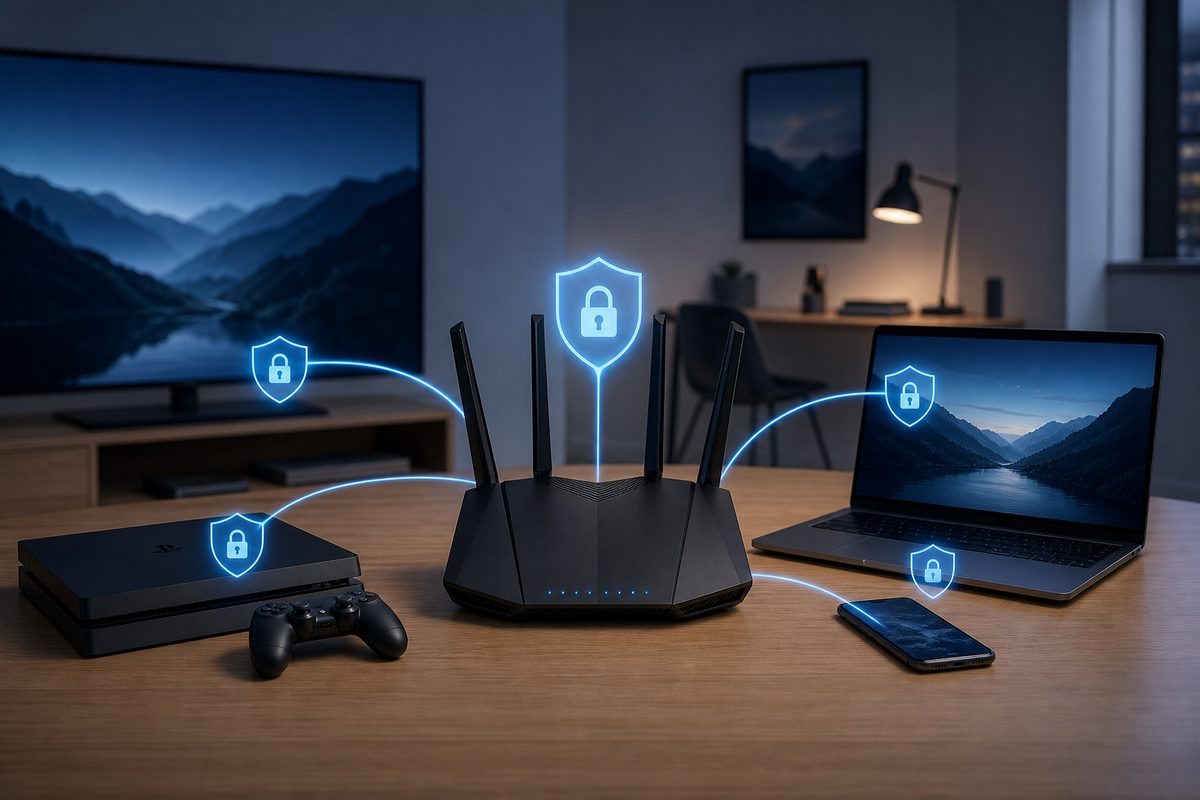
If you have a Smart TV, a set-top box, a console or a work laptop at home, a VPN on a single phone no longer solves the problem. A VPN on an ASUS router lets you enable a secure tunnel for the devices that need it, while leaving everything else on the regular internet — without the chaos of apps, profiles and constant switching.
In this guide we walk through a safe 2026 scenario: how to check whether your ASUS supports VPN Fusion, which protocol to choose, which settings to verify before you turn it on, and what to do if YouTube, Telegram, Discord or banking sites start acting up. The article does not contain instructions for bypassing laws or attacking networks: it covers only the standard configuration of home equipment and connection diagnostics.
When a VPN on an ASUS Router Beats an App on Every Device
A router-based VPN is not always the right call. It makes the most sense when a device can't install VPN apps, or when you want to manage traffic for your entire home network from a single panel.
Typical scenarios:
- Smart TVs, Apple TV, Android TV or a set-top box don't support the VPN app you need;
- a game console, media player or IoT device has to use the same tunnel;
- you want to enable VPN only for the TV and laptop, while leaving banking, government services and local devices outside the VPN;
- you need to quickly disable the tunnel for a specific device without touching the others;
- several people live in the household, and configuring an app for each of them separately is inconvenient.
ASUS describes exactly this logic in its support materials: a router-level VPN lets you give VPN access to devices that can't run separate VPN software, and in newer firmware the client role is often handled by VPN Fusion. For the general concept of a router VPN, FoliVPN already has a base article "VPN on a router: where to start", and if you have a different model, our companion guides for Keenetic and MikroTik will come in handy.
The Key Difference Between ASUS VPN Client and VPN Fusion
Older ASUS instructions often reference a VPN Client section: the user opens the web interface, adds an OpenVPN, L2TP or PPTP profile, uploads a config file and clicks "Activate." In newer firmware ASUS notes that the VPN client may be called VPN Fusion.
The practical point of VPN Fusion is not just to "turn on VPN for everyone." It lets you bind a VPN profile to specific devices or scenarios. For example:
| Device | Better through VPN? | Why |
|---|---|---|
| Smart TV / set-top box | Often yes | No convenient VPN app, a shared tunnel is needed |
| Laptop for YouTube/Discord | Depends on the task | You can route only the device that needs it |
| Phone with banking and government apps | Usually no | Local services may require a familiar region and IP |
| Game console | With caution | VPN can help with routing but often adds latency |
| Smart home / printer / NAS | Usually no | Local availability and stability matter more |
This approach is closer to "split routing" than to a blunt "the entire home through one country" mode. If what you actually need is the logic of "some apps through VPN, some directly," read our separate article on VPN split tunneling.
What to Check Before You Configure Anything
Before uploading a config, check four things. It saves more time than any "magic" setting ever will.
1. Model and Firmware
ASUS states that feature support depends on the region, model and firmware version. For the WireGuard client in VPN Fusion, the official ASUS article lists firmware later than 3.0.0.4.388.23000, while third-party instructions from some VPN providers mention an earlier threshold of 3.0.0.4.388.20000. Don't argue with numbers from different guides: open the support page for your exact model and update the firmware through the standard procedure.
2. Type of VPN Connection
ASUS explicitly recommends checking the connection type with your VPN provider in advance. Options include OpenVPN, IPsec, PPTP, L2TP and WireGuard. For a home scenario in 2026, the most common choices are WireGuard or OpenVPN: WireGuard is usually simpler and faster, while OpenVPN is sometimes more compatible with older devices and firmware.
3. Configuration File
For OpenVPN you usually need a .ovpn file. For WireGuard, a WireGuard config that gets loaded into VPN Fusion via Upload Config. Don't paste keys and configs from random Telegram channels: you're effectively handing off your home traffic routing to an unknown server.
4. Device Plan
Decide upfront who will go through the VPN: TV, set-top box, laptop, console. Don't start with the "all devices" mode. If something breaks, you won't be able to tell where the cause is — DNS, route, protocol, a specific device or the service itself.
How to Set Up a VPN on an ASUS Router via VPN Fusion
Below is a safe, universal procedure. Menu names may differ slightly depending on the model and interface language.
- Connect to the router by cable or Wi-Fi.
- Open
http://www.asusrouter.comin a browser, or the router's LAN IP, for example192.168.1.1. - Sign in with the router's administrator account.
- Open VPN → VPN Fusion. On older firmware, look for VPN → VPN Client.
- Click Add profile.
- Choose the VPN type: WireGuard or OpenVPN, if it's supported by your model and your VPN provider.
- Upload the configuration file: a WireGuard config or
.ovpn. - Save the profile, but don't assign it to the entire network right away.
- Open the device selector and tick only one test device — for example, a laptop or a TV.
- Enable the profile and check the IP, DNS and that the sites you need actually work.
- If everything is stable, add the remaining devices one by one.
Post-Setup Checklist
- The profile is enabled in VPN Fusion, not just created.
- The VPN is assigned to a specific device, not a random group.
- The external IP on the test device has changed.
- DNS queries aren't unexpectedly leaking through your old provider.
- YouTube, Telegram, Discord and ordinary sites open correctly under separate tests.
- Banking apps and government services aren't routed through VPN unnecessarily.
- Local devices — printer, NAS, smart home — still see each other.
- After a router reboot, the profile comes up as expected, or you know where to enable it manually.
Why Something Doesn't Work After Setup
YouTube or Video Stutters
A VPN isn't required to speed up video. It changes the route: sometimes that helps, sometimes it adds latency and reduces stability. Try a different server, a different protocol and check Wi-Fi quality. If the problem is only on the TV, compare it with a laptop on the same network. For video diagnostics there is a separate breakdown "YouTube over VPN is slow".
Telegram or Discord Freezes
Messengers and voice services are sensitive to UDP, DNS and route quality. If text messages go through but calls or voice channels freeze, don't rush to change every setting. First check: does the service work directly, does it work through a VPN app on your phone, and does the problem only happen with the router tunnel.
Sites Open Only Partially
If some sites open and others hang, you may have issues with MTU/MSS, DNS or a specific route. On routers it's more noticeable because one profile affects several devices at once. A safe tactic: switch servers, compare WireGuard and OpenVPN, check DNS, and don't change a dozen parameters at the same time.
Banks and Local Services Complain About Logins
This is a normal risk of a router VPN. The site may see an unfamiliar IP, a different region or a datacenter and request extra verification. That's why for banking, government portals and work accounts it's better to use a direct connection or a separate rule without VPN. This isn't an "ASUS bug" — it's how the security model of such services works.
WireGuard or OpenVPN: What to Choose for ASUS
If your model supports WireGuard in VPN Fusion, start with it. WireGuard is officially described as a modern protocol with a simple configuration and a compact architecture. The WireGuard documentation also emphasizes that the protocol is "silent" when idle: behind NAT, keepalive packets are sometimes important so the connection doesn't drop after inactivity.
OpenVPN is worth keeping as a fallback. It's older, often supported by a larger number of providers and older firmware, but it can be heavier on a weak router. On budget models the router's CPU itself becomes the bottleneck: the VPN encrypts traffic on the router rather than on a powerful laptop.
How Not to Turn a Router VPN into a Security Problem
The minimum set of rules:
- Update the firmware from the official ASUS support page.
- Don't use public free configs from an unknown provider.
Use the smallest safe checklist
Open Foli, refresh the subscription and test one network and one route before changing everything.